
AI-Generated Help: Interview Questions, Emails & Job Descriptions
Stop starting from a blank box. Give the AI a few words and it drafts eight tailored interview questions, an applicant email, a complete job description, or your company description. You review, edit, and decide.
- interview questions per applicant
- 8
- places in the app where the AI drafts for you
- 4
- words in a typical email draft
- 100 to 200
- words in a typical job description
- 200 to 350
Start from a draft, not a blank box, and edit from there.
AI-Generated Help puts a drafting assistant in the places where recruiters spend the most time writing. You give the AI a few words about what you need, and it writes a first version. It helps in four places: interview questions tailored to an applicant, an email to an applicant, a complete job description for a job posting, and your company description, written from your website. Emails, job descriptions, and the company description land in normal editable boxes, and nothing is sent or published until you press Send or Save.
At a glance
- What it does
- Drafts interview questions for an applicant, applicant emails, job descriptions, and your company description.
- Where to find it
- The applicant profile panel (the AI Questions bar and the envelope button), Admin › Configuration › Workflows › Job Postings, and Admin › Configuration › Settings › My Company. Look for a button with a small lightning-bolt icon labelled “Generate with AI” (“Learn” for the company description).
- Who can use it
- Any signed-in user who can reach the screen.
- What it costs
- There is no separate switch or credit charge for these four AI helpers today.
- Good to know
- Treat every draft as a draft. Check names, dates, and facts before you send or save.
Why recruiters care
- Open an applicant, press “Generate with AI”, and get eight interview questions built from that person's resume and the job they applied for.
- Describe an email in one sentence and get a subject and body in the normal editor, with merge tags that fill in per applicant.
- Type a Position, pick a Role, and get a job description with responsibilities and qualifications to edit before you save.
- Every draft lands in a box you can change, so the final wording is always yours.
Why leaders care
- Interview questions come from the job and the resume, so interviewers are not working from a generic list.
- The job description helper follows built-in writing guidelines: it avoids discriminatory wording and unnecessary physical requirements, and does not invent salary, benefits, or quotas.
- When the AI drafts an email, the applicant's name, phone, email, and resume are not sent to it. It sees only your purpose sentence and the names of the available merge tags.
- A person stays in the loop. Nothing is sent or published until someone presses Send or Save.
Describe it, read it, edit it.
The same short loop in all four places.
- 1
Open the place you write
An applicant profile, the Send Email dialog behind the envelope button, the New Job Posting dialog, or Settings › My Company › Your Website.
- 2
Give it a few words
Say in a sentence what the email is for, type the Position and pick the Role, or type your website address. For interview questions there is nothing to type.
- 3
Press the button
Press “Generate with AI” (“Generate” inside the email box, “Learn” for the company description). On a job posting, a loading indicator shows for a few seconds.
- 4
Read the draft
Eight questions, a subject and body, a full description, or a Business Description appear in the normal panel or box you already use.
- 5
Edit freely
Fix names, dates, and facts. In emails, merge tags such as <Applicant First Name> look like placeholders while you edit.
- 6
Send or save
Nothing is sent or published until you press Send or Save. Not quite right? Press the button again for a different version.
Eight questions written for this applicant.
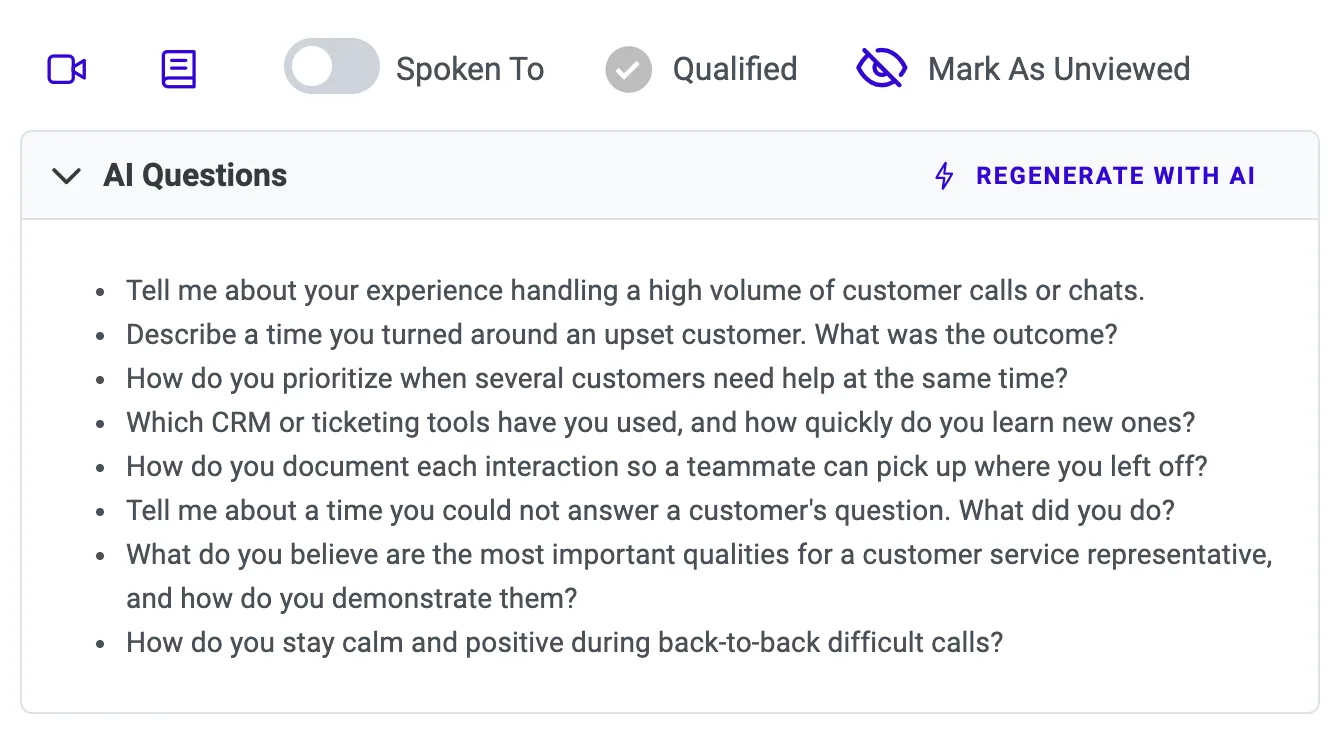
Open any applicant whose status is Applicant and find the AI Questions bar near the top of the profile panel. Press “Generate with AI” and the AI writes eight interview questions for that person, based on the position they applied for, the job description, your company, and their resume.
- Questions are written in English, one or two sentences each, and are open-ended: no yes/no answers.
- At least three of the eight refer to something specific from the resume or the job, such as a skill, a tool, or a duty.
- Skills that are only listed, without work history behind them, are probed rather than assumed. The AI never invents employers, projects, or years of experience.
- Questions are saved on the applicant the moment they are generated. Use “Regenerate with AI” to replace them with a new set.
Describe the email in one sentence.
Click the envelope button on an applicant's profile to write an email. Under the subject line, press “Generate with AI”, say in a sentence what the email is for (add a tone such as “friendly” or “formal” if you care), and press “Generate”. The subject and the body fill in for you.
- The purpose box takes up to 500 characters.
- It works for messages that have nothing to do with scheduling: office hours, parking, dress code, what the company does, benefits.
- If you want an interview time in the email, put it in your purpose or insert the <Event Date> and <Event Time> tags. The AI does not invent one.
- The applicant's name, phone, email, and resume are not sent to the AI. It receives only your purpose sentence and the names of the available merge tags.
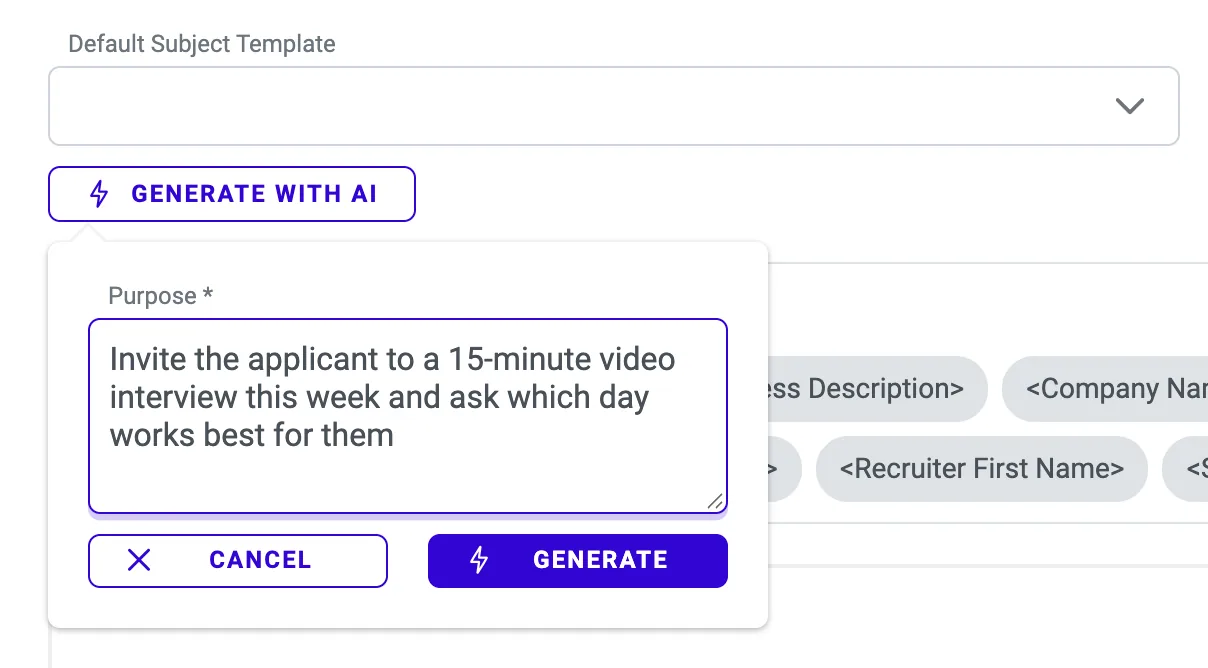
A draft that is ready to personalize and send.
The draft is typically 100 to 200 words, warm and professional, and starts with “Hi <Applicant First Name>,”. It lands in the same editor you already use, so you can change anything before you send.
- Personal details are merge tags such as <Applicant First Name>, <Job Posting>, <Company Name>, and <Signature>.
- Tags look like placeholders while you edit and are replaced with each applicant's real values when the email is sent.
- The AI uses only what you wrote or what a merge tag supplies. It does not invent dates, times, names, job titles, or places.
- Press the button again for a different version. The new text replaces the old text in the box.
A full job description from a position and a role.
In Admin › Configuration › Workflows › Job Postings, press New, type the Position (for example “Customer Service Representative”), and pick the Role. “Generate with AI” becomes active when both are filled in. Press it, read the description, edit it freely, then continue with Add Screening Questions or Save.
- The result is usually 200 to 350 words: a short introduction, a Responsibilities list, and a Qualifications list, sometimes with a closing invitation to apply.
- It uses your company name, your saved business description, and your office address to make the text relevant.
- Anything you already typed in the Description box is used as a hint, then replaced by the new draft.
- Built-in writing guidelines keep it inclusive: it avoids discriminatory wording and unnecessary physical requirements, and does not invent salary, benefits, years of experience, remote-work rules, or quotas.
Your story, written from your own website.
Under Admin › Configuration › Settings › My Company › Your Website, type your website address and press “Learn”. The AI reads your public website and writes a short Business Description: about 120 words, four or five sentences, in first person (“We are…”). A green message reads “Description generated. Review and save when ready.”
- Nothing is stored until you press Save.
- This description is reused as background when the AI writes job descriptions, emails, and interview questions, so a minute spent reviewing it improves those drafts.
- Press “Learn” again for a different version. The new text replaces the old text in the box.
What you give it, and what you get back.
Each helper works in the screen where you already write.
| Helper | Where you find it | What you give it | What you get |
|---|---|---|---|
| Interview questions | The AI Questions bar on the applicant profile panel (applicants with the status Applicant). | Nothing to type. It uses the position, job description, company, and resume. | Eight open-ended questions, saved on the applicant. |
| Applicant email | The envelope button in the profile panel, then “Generate with AI” under the subject line. | One sentence on what the email is for (up to 500 characters). Tone is optional. | A subject and a body, typically 100 to 200 words, with merge tags. |
| Job description | Admin › Configuration › Workflows › Job Postings › New. | The Position and the Role. | A description of usually 200 to 350 words, with Responsibilities and Qualifications. |
| Company description | Admin › Configuration › Settings › My Company › Your Website. | Your website address, then “Learn”. | A Business Description of about 120 words, in first person. |
Everything in AI Writing Help.
Eight questions per applicant
Press “Generate with AI” on an applicant and get eight open-ended interview questions, one or two sentences each, written in English. They draw on the position, the job description, your company, and the resume.
Questions that use the resume
At least three of the eight refer to something specific from the resume or the job. Skills that are only listed, without work history behind them, are probed rather than assumed. The AI never invents employers, projects, or years of experience.
Emails from one sentence
Say what the email is for (up to 500 characters), add a tone if you care, and press “Generate”. You get a subject and a body, typically 100 to 200 words, warm and professional, opening with “Hi” and the applicant's first name.
Merge tags, not guesses
Personal details are merge tags such as <Applicant First Name>, <Job Posting>, <Company Name>, and <Signature>, replaced with real values per applicant when the email is sent. The AI does not invent dates, times, names, job titles, or places.
Job descriptions from Position and Role
Fill in the Position and Role on a new job posting and press “Generate with AI”. You get a description of usually 200 to 350 words: a short introduction, a Responsibilities list, and a Qualifications list.
Company description from your website
Type your website address and press “Learn”. The AI reads your public website and writes a short Business Description of about 120 words, in first person, that is reused as background for the other helpers.
Drafts you stay in charge of.
The AI writes the first version. These rules keep the decision with you.
You press Send or Save
Emails, job descriptions, and the company description land in normal editable boxes. Nothing is sent or published until you press Send or Save.
No invented facts
The AI does not invent dates, times, names, job titles, or places in emails, employers or years of experience in interview questions, or salary, benefits, remote-work rules, or quotas in job descriptions.
Applicant details stay out of email drafts
The applicant's name, phone, email, and resume are not sent to the AI. Only your purpose sentence and the names of the available merge tags are.
Inclusive wording by design
The writing guidelines built into the job description helper avoid discriminatory wording and unnecessary physical requirements.
It says no to unusable requests
If a request is empty, a joke, or an attempt to give the AI instructions, it answers with a short message such as “Please enter a valid recruiting email purpose.” Rewrite the request and try again.
Drafts are drafts
Check names, dates, and facts before you send or save. The AI gives you a starting point, not a finished message.
Rules and limits at a glance.
What each helper needs, and what it does not do.
Put the specifics in your sentence.
For emails, the AI uses only what you write and what a merge tag supplies. If the message needs a date, a time, a dress code, or a parking note, say so in the purpose, or insert the Event Date and Event Time tags.
- Interview questions
- Eight per applicant, in English, one or two sentences each, open-ended. Saved on the applicant when generated.
- What interview questions need
- A job position or a parsed resume. With neither, the AI refuses and asks you to add a real job position first.
- Where the AI Questions bar appears
- On applicants whose status is Applicant. Before anything is generated it reads “No AI questions have been generated for this applicant”.
- Email purpose
- Up to 500 characters. A typical draft is 100 to 200 words.
- Envelope button
- Grey until a signature template exists (hover for “Please create your signature template first.”), and for blocked applicants.
- Job description
- Needs the Position and Role filled in. A typical result is 200 to 350 words. Text already in the Description box is used as a hint and replaced.
- Company description
- About 120 words, four or five sentences, first person. Nothing is stored until you press Save.
- Regenerating
- Press the button again for a different version. For emails, job descriptions, and the company description, the new text replaces the old text in the box. For interview questions, use “Regenerate with AI”.
- Who can use it
- Any signed-in user who can reach the screen.
- Cost
- There is no separate switch or credit charge for these four AI helpers today.
- Other AI features
- Ask the Shark, Mimi, and Native AI phone screening are separate AI features with their own pages.
From busywork to a hiring engine.
The old way
- Stare at an empty email box and retype the same message for the next applicant.
- Write interview questions from scratch, or reuse a generic list for every candidate.
- Write each job description by hand, from the title down.
With ATS Mako
- Describe the email in a sentence, press “Generate”, and edit the draft in the normal editor.
- Press “Generate with AI” on the applicant and get eight questions based on their resume and the job.
- Enter the Position and Role, press “Generate with AI”, and read a draft with responsibilities and qualifications.
Related features
AI Writing Help FAQ
Does the AI send emails or publish job posts for me?
No. Emails, job descriptions, and the company description land in normal editable boxes, and nothing is sent or published until you press Send or Save. Interview questions work differently: they are saved on the applicant as soon as they are generated, so they are there the next time you open the profile.
What does the AI see when it drafts an email?
Only your purpose sentence and the names of the available merge tags. The applicant's name, phone, email, and resume are not sent to the AI. Personal details are filled in by ATS Mako when the email is sent.
Can the AI make up an interview time, a name, or a fact?
It is built not to. For emails, it does not invent dates, times, names, job titles, or places, and uses only what you wrote in the purpose or what a merge tag supplies. If you want an interview time in the email, put it in your purpose or insert the Event Date and Event Time tags. Even so, treat every draft as a draft and check names, dates, and facts before you send or save.
Why won't it write interview questions for an applicant?
To write good questions, the AI needs a job position or a parsed resume. If the applicant has neither, it politely refuses and asks you to add a real job position first. The AI Questions bar appears on applicants whose status is Applicant.
Why is the envelope button grey?
The envelope button stays grey until a signature template exists. Hover over it and it reads “Please create your signature template first.” It is also grey for applicants who are blocked.
Does the job description helper invent salary or requirements?
No. Its built-in writing guidelines keep the text inclusive: it avoids discriminatory wording and unnecessary physical requirements, and it does not invent salary, benefits, years of experience, remote-work rules, or quotas. It does use your company name, saved business description, and office address to make the text relevant.
Who can use these helpers, and is there an extra charge?
Any signed-in user who can reach the screen can use them. There is no separate switch or credit charge for these four AI helpers today.
Build a faster, smarter hiring engine.
Start your 30-day free trial — no setup fees, no contracts. Or see ATS Mako in action.
30-day free trial · No setup fees · No long-term contracts