
Messages Inside Mako: Team Chat for Your Office
Type @, pick a colleague, and press Enter. Private conversations, an unread counter on the header icon, and @all or group tags like @sales when you need to reach many people at once.
- characters per message
- 2,000
- Inbox, Sent, and Audiences
- 3 tabs
- people per audience, at most
- 500
- about how often the unread counter refreshes
- 1 minute
Chat with your team inside ATS Mako, with no other app to open.
Messages Inside Mako lets the staff in your office talk to each other without leaving ATS Mako. Click the inbox icon in the top bar, type @ and a colleague's name, write your message, and press Enter. Each person gets their own chat history with you, and a red counter on the inbox icon shows what is unread. To reach many people at once, use @all for the whole office or a group tag you create, such as @sales.
At a glance
- What it does
- Private chat between staff users of the same office, plus broadcast messages to everyone or to named groups.
- Where to find it
- The inbox icon in the top bar. It opens a window titled Messages (there is no separate page).
- Who can use it
- Every signed-in staff user of the office. @all and group tags need extra permissions. Not available in the Employee Portal.
- What it needs
- Nothing to set up. @all needs the permission “Message all users”, and group tags need “Manage message audiences”.
- Good to know
- Messages are plain text and cannot be edited or deleted once sent. Updates arrive about once a minute, with no sound, email, or text alert.
Why recruiters care
- Ask a quick question without switching apps. Type “@dylan are you free at 3?” and press Enter.
- Find the right person as you type. The suggestion list searches full name, first name, last name, nickname, and email.
- Keep one running chat history per colleague, with older messages loading as you scroll up.
- See what you missed at a glance. A red number on the inbox icon counts unread messages, up to 99 and then “99+”.
Why leaders care
- Reach the whole office with one message using @all, or a defined group with a tag such as @Leaders or @Recruiters.
- Confirm before anything goes out. ATS Mako asks, for example, “Send to 23 people?” before a broadcast is delivered.
- Check who has seen it. The Sent tab shows how many people have read a broadcast, such as “read by 4 of 23”.
- Replies come back to you privately, so an announcement never turns into a long thread for everyone.
Type @, write, press Enter.
No new app to learn and nothing to install.
- 1
Click the inbox icon
It sits in the top bar. A window titled Messages opens with the message box on top and the Inbox, Sent, and Audiences tabs underneath.
- 2
Type @ and a name
A list appears with every matching person, showing full name, nickname, and email. Use the arrow keys and Enter, or the mouse, to pick one.
- 3
Write and send
Type your message after the name and press Enter. Shift + Enter starts a new line. A green “Message sent” note confirms it.
- 4
Watch the counter
The red number on the inbox icon shows unread messages. The Inbox lists one row per person, newest activity first, with a red “Unread: n” count.
- 5
Open the conversation
Click a row to read the whole history as chat bubbles. Opening it marks its messages as read. Inside, type and press Send.
- 6
Reach many people at once
Type @all or a tag such as @sales. ATS Mako asks you to confirm, then delivers an individual message to each person.
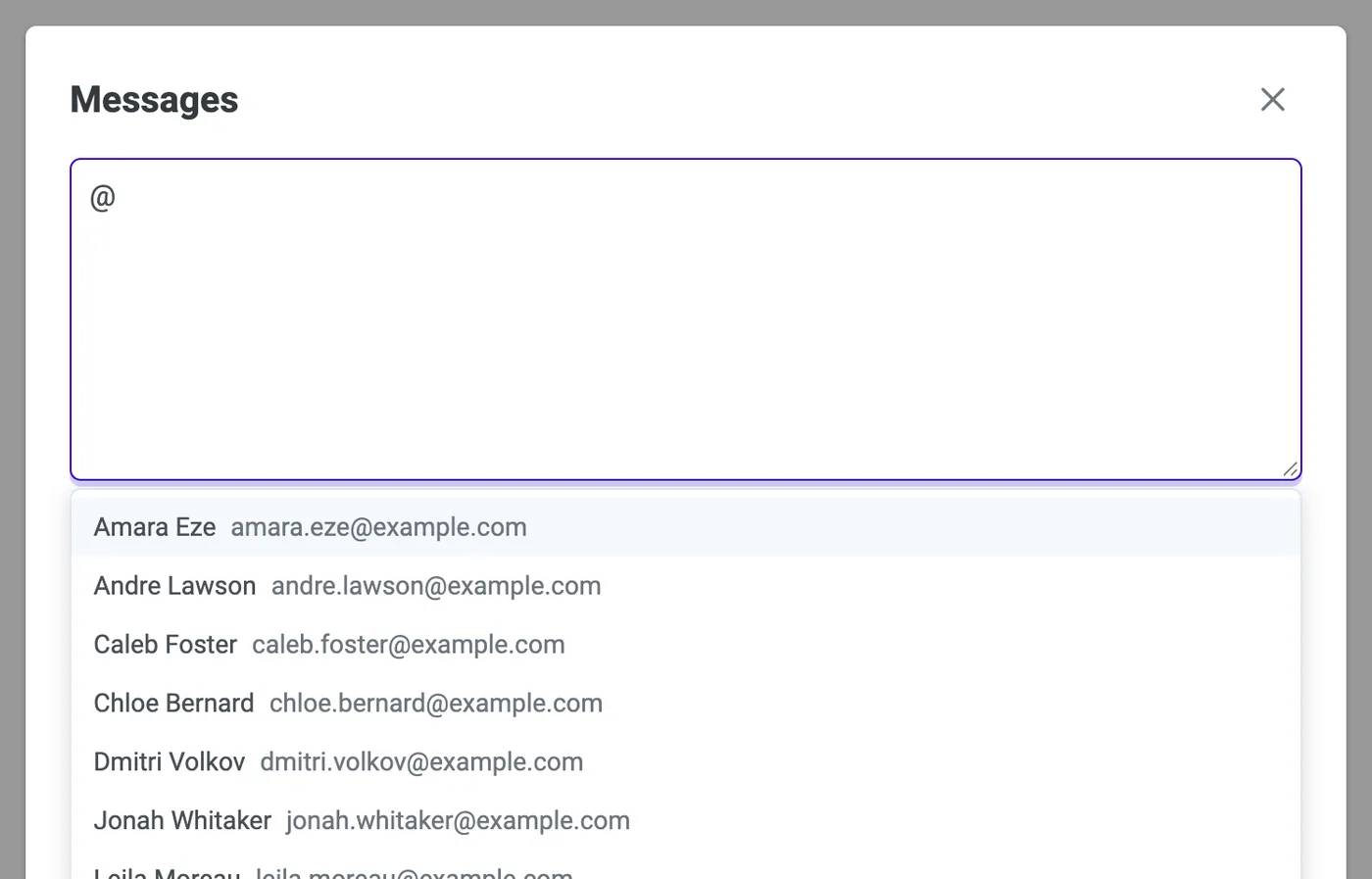
Type @ and the name finds itself.
The suggestion list matches on what a name starts with, ignoring capitals and accents, and it searches full name, first name, last name, nickname, and email. Pick the person, and the name is written for you.
- Each suggestion shows the full name, nickname, and email, so you can tell two colleagues apart.
- If two people share a first name, pick the right one from the list and the full name is written instead.
- Helpful notes appear under the box when something is off, such as “Start with @ and a name” or “More than one person matches @dylan. Pick one from the list.”
- You cannot message yourself, and both people must be active in the office.
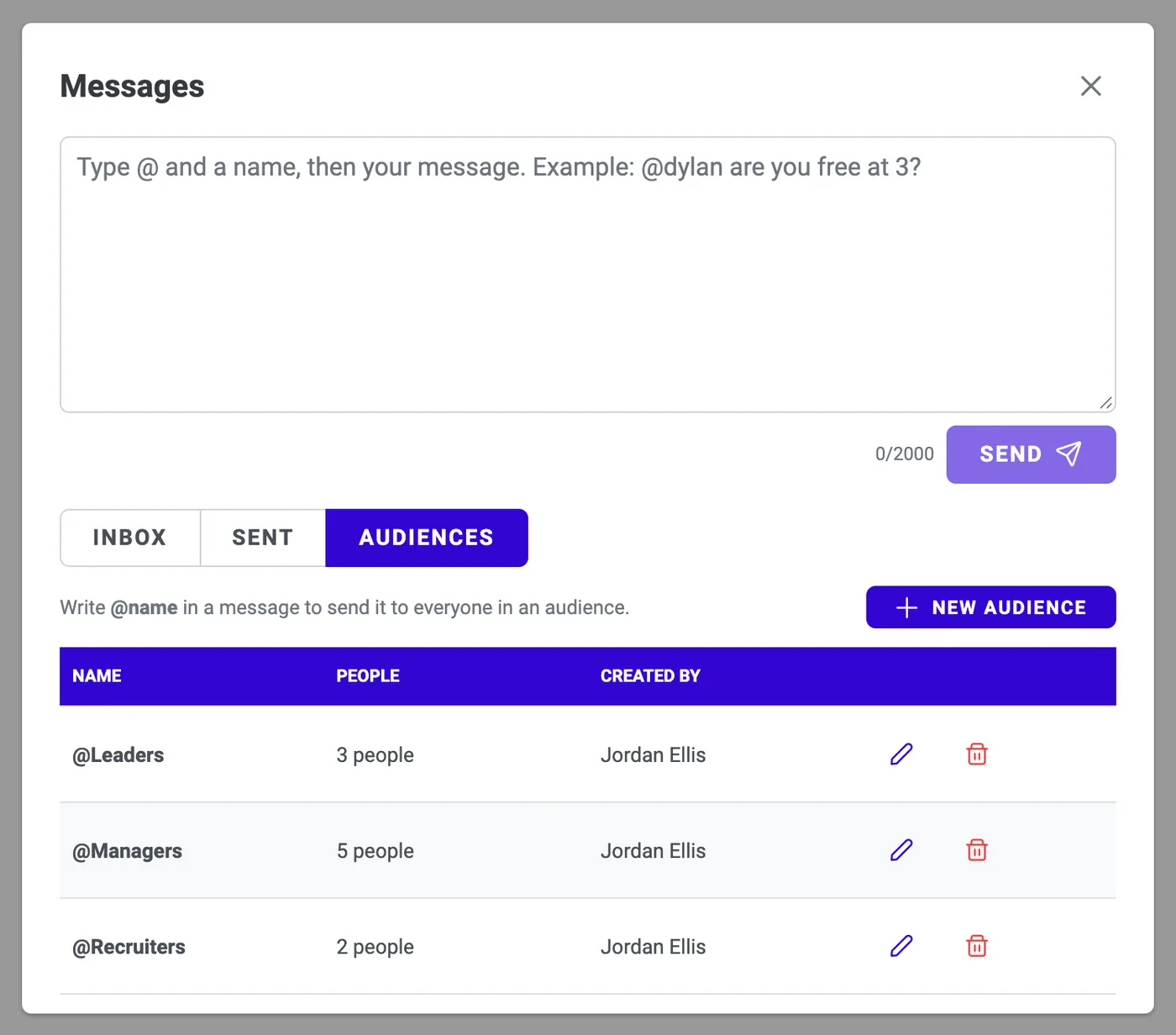
Broadcast to everyone or to a group.
@all sends your message to everyone else in the office. A group tag such as @sales, @Leaders, or @Recruiters sends it to the people you put in that group. Before anything goes out, ATS Mako asks you to confirm, for example “Send to 23 people?”.
- A broadcast is delivered as an individual message to each person, so replies come back to you privately and never reach the whole group.
- It shows up inside each recipient's own conversation with you, marked “via @all” or “via @sales”.
- On the Sent tab you see “To 23 people” and “read by 4 of 23”, so you know who has seen it.
- People who leave the office or are deactivated are skipped from groups automatically.
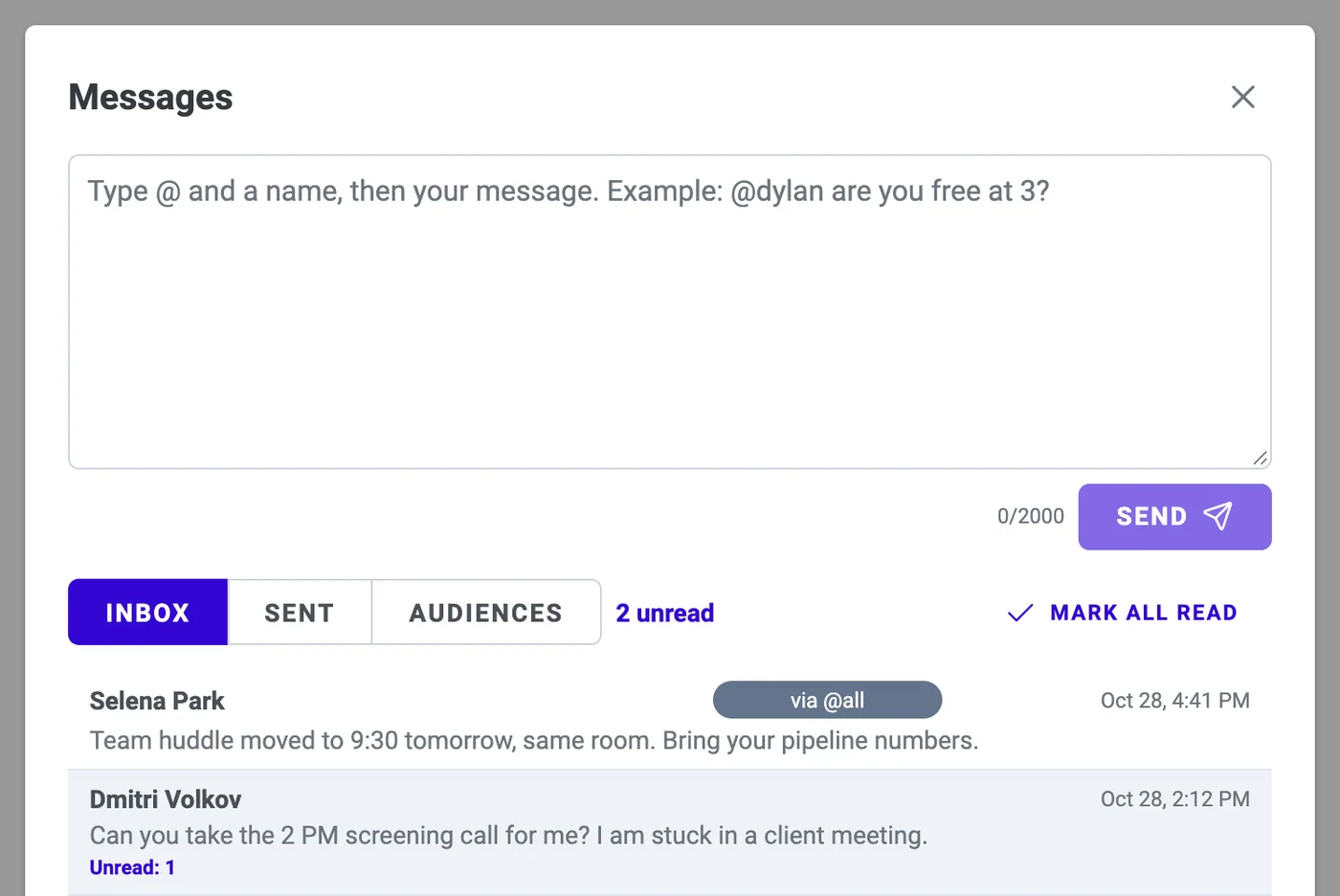
A counter that shows what is waiting.
The inbox icon turns red and shows how many messages are unread, up to 99 and then “99+”. The badge briefly pulses when the number increases, so a new message is easy to spot.
- The Inbox shows one row per person, newest activity first, ten per page, with the time and a one-line preview. Your own last message starts with “You:”.
- A red “Unread: n” count marks each conversation with messages waiting, and Mark all read clears them in one click.
- Inside a conversation, older messages load as you scroll up.
- Updates arrive about once a minute while the app is open. There is no sound and no email or text notification.
Everyone chats. Broadcasting is permissioned.
Permissions are set per user and per office, so you decide who can message everyone and who can manage group tags.
| Action | Who can do it |
|---|---|
| Open Messages, send and receive one-to-one messages | Every signed-in staff user |
| Use @all | Users with the permission “Message all users” |
| See the Audiences tab, create groups, and use tags such as @sales | Users with the permission “Manage message audiences” |
| Where permissions are granted | Admin › Configuration › Users › the user's permissions › Communication. Super admins have both permissions. |
Everything in Team Messages.
Message by name with @
Type @ and the first letters of a name. The list matches full name, first name, last name, nickname, and email, ignoring capitals and accents. Pick a person, write your message, and press Enter.
A chat history for every person
Each conversation is a private history with that person, shown as chat bubbles with times. Inside a conversation you just type and press Send, with no need to type @name again.
An unread counter on the header
A red number on the inbox icon counts unread messages. The Inbox shows “Unread: n” on each conversation and a Mark all read button.
@all for the whole office
Send one message to everyone else in the office. ATS Mako asks you to confirm first, and each person receives it as an individual message.
Reusable group tags
Build groups of colleagues such as @sales, @Leaders, or @Recruiters, then use the tag in any message. Rename a group or change its people whenever you need to.
Read counts on broadcasts
The Sent tab lists every message you sent. For a broadcast it shows who it went to, for example “To 23 people”, with “read by 4 of 23”.
Rules that keep broadcasts tidy.
A message to many people should never go out by accident, and it should never turn into a reply-all thread.
A confirmation before every broadcast
ATS Mako shows how many people a message goes to, for example “Send to 23 people?”, and waits for your confirmation.
Replies stay private
A broadcast arrives as an individual message, so a reply goes back to the sender and never reaches the whole group.
Broadcasting needs a permission
@all needs “Message all users” and group tags need “Manage message audiences”. Both are set per user and per office.
Only active people
Both people in a chat must be active in the office. Group members who leave the office or are deactivated are skipped automatically.
Staff only
Messages are for staff users of the same office. Employee Portal accounts cannot use them.
No oversized sends
@all is refused for offices of more than 500 people, and a group holds 1 to 500 members. Use an audience for large groups.
Rules and limits at a glance.
What Messages does, and what it deliberately leaves out.
Type @ and the first letters.
“@dyl” is enough to bring up a list. Pick the person from it so the right full name is written, especially when two colleagues share a first name.
- Message length
- 1 to 2,000 characters, plain text. A counter shows how many you have used.
- Sending
- Enter sends. Shift + Enter starts a new line.
- Editing and deleting
- Messages cannot be edited or deleted once sent.
- Inbox
- One row per person, newest activity first, ten per page.
- Unread counter
- Shown on the inbox icon up to 99, then “99+”. It refreshes about once a minute.
- Alerts
- A red counter only. There is no sound and no email or text notification.
- @all
- Needs the permission “Message all users”. Refused for offices of more than 500 people.
- Group size
- 1 to 500 members. Every member must currently be in the office.
- Group name
- Letters, numbers, dot, underscore, or hyphen, up to 40 characters, no spaces. The name “all” is reserved.
- Not included
- Attachments, an emoji picker, message search, and typing indicators.
- Who it is for
- Staff users only. Employee Portal accounts cannot use Messages.
- Not the same as
- Admin › Communication › Audiences, which are groups of applicants for mass texts and emails.
From busywork to a hiring engine.
The old way
- Switch to another chat app to ask a colleague a quick question.
- Email the whole team to share a one-line update.
- Wonder whether anyone actually saw the announcement.
With ATS Mako
- Type @ and a name inside ATS Mako and press Enter.
- Send one message to @all or a group tag such as @sales, after a confirmation prompt.
- Open the Sent tab to see how many people have read it.
Related features
Team Messages FAQ
Who can use Messages, and where do I find it?
Every signed-in staff user in your office can open Messages, send, and receive one-to-one messages. Click the inbox icon in the top bar. It opens a window titled Messages with a message box and three tabs: Inbox, Sent, and Audiences. There is no separate page. Employee Portal accounts cannot use Messages.
How do I message the whole office?
Type @all, then your message. You need the permission “Message all users” (super admins have it). ATS Mako asks you to confirm how many people it goes to, then delivers it to each person as an individual message. @all is refused for offices of more than 500 people, so use an audience for larger offices.
How do I create a group tag such as @sales?
Open Messages, go to Audiences, and press New audience. Give it a name (letters, numbers, dot, underscore, or hyphen, up to 40 characters, no spaces), choose the people from the searchable list, and press Create. From then on @sales works in any message. You need the permission “Manage message audiences”, set per user in Admin › Configuration › Users under Communication.
Do replies to a broadcast go to everyone?
No. A broadcast is delivered as an individual message to each person, so replies come back to you privately and never reach the whole group. Each recipient sees it inside their own conversation with you, marked “via @all” or “via @sales”.
How will I know I have a new message?
The inbox icon in the header turns red and shows the number of unread messages, up to 99 and then “99+”. The badge pulses briefly when the number goes up. Updates arrive about once a minute while the app is open. There is no sound and no email or text notification, so keep an eye on the icon.
Can I edit or delete a message, attach a file, or search old chats?
No. Messages are plain text, 1 to 2,000 characters, and cannot be edited or deleted once sent. There are no attachments, emoji picker, message search, or typing indicators.
Is this the same as the Audiences under Admin › Communication?
No. Message audiences such as @sales are groups of colleagues for staff chat. Admin › Communication › Audiences are groups of applicants for mass texts and emails.
Build a faster, smarter hiring engine.
Start your 30-day free trial — no setup fees, no contracts. Or see ATS Mako in action.
30-day free trial · No setup fees · No long-term contracts