
Employees Module & Employee Portal
Every employee gets a personal portal for hours and sales, time off, credentials, and reviews. Leaders approve their own team, and the office gets compensation, policies, and payroll export in one place.
- for every employee, plus Approvals for leaders
- 5 tabs
- hours per day, up to two decimals
- 0 to 24
- rating for every review competency
- 1 to 5
- emails the module sends at key moments
- 6
Employee self-service and leader approvals, inside the system you already use.
The Employees Module gives each employee a personal login to an Employee Portal inside your ATS Mako office. Employees see their job details, submit weekly timesheets with hours and sales, request time off, keep licenses and certifications current, and take part in performance reviews, while leaders approve their own team's timesheets and time off. For the office, it puts portal access, compensation, time-off policies, review cycles, and payroll export in one place. ATS Mako records approved hours and sales and exports them as CSV or Excel for payroll. It is not a payroll processor.
At a glance
- What it does
- A self-service portal for employees, an approval workflow for leaders, and management tools for the office (portal access, compensation, time-off policies, reviews, and payroll export).
- Where to find it
- Employees sign in from your office's usual login page by pressing Employees. Office staff work in HR › Employees (Active, All, and Terminated) and HR › Employee Onboarding.
- Who can use it
- Every employee you give a login, leaders (employees with Is Leader? on), and office staff who manage employee records.
- What it needs
- A login, an Assigned Leader, and Comp tab choices for each employee, plus the HR settings under Admin › Configuration › Settings (reviews, time off, pay periods, overtime and commission, credentials).
- Good to know
- Approved hours and sales are recorded and exported as CSV or Excel for payroll. ATS Mako is not a payroll processor.
Why employees care
- Log hours and sales once a week, Monday to Sunday. Save a draft any time and submit when it is right.
- Request time off in a few clicks, see your balance for each leave type, and follow the status of every request.
- See your pay history: every approved week with regular and overtime hours, pay, and how it was calculated.
- Keep your licenses and certifications in one place, with a badge that shows what is about to expire.
Why leaders and HR care
- Approve your team's timesheets and time-off requests from one Approvals tab, with Approve all when several weeks are waiting.
- Set compensation once in Settings, then tick the wage and commission products each employee earns on their Comp tab.
- Manage time-off policies, review cycles, and credentials in the same system that holds the employee record.
- Export approved hours and sales as CSV or Excel, with figures frozen at the moment a leader approved each week.
From new hire to approved week.
One loop connects the employee, the leader, and the office.
- 1
Give access
Convert the applicant, finish onboarding, and press Onboarding Confirmed. The employee is Active, and an email with the portal address and a temporary password goes out.
- 2
The employee signs in
They press Employees on the login page, use the temporary password, and choose their own on the Restore Password page.
- 3
Set the rules for each person
On the Comp tab, tick Hourly Wage and the commission products the employee sells. Set Assigned Leader, and turn on Is Leader? for the person who approves.
- 4
The employee submits the week
Hours per day, plus units sold for ticked products. Save Draft any time, then Submit for Approval, which locks the week and emails the leader.
- 5
The leader approves or denies
Approving locks the week, emails the employee, and adds it to their pay history, to reports, and to payroll. A denial reopens the week with the leader's note.
- 6
Export for payroll
In Settings, choose a pay period or a custom range and download Excel or CSV of the approved hours and sales.
Weekly timesheets that leaders can approve.
Each week runs Monday to Sunday. Employees type the hours worked each day (0 to 24, up to two decimals). If the office has ticked sales products on the employee's Comp tab, a Sales section appears for units sold per product per day.
- Tiles at the top summarize hours (regular and overtime) and, with sales, the employee's commission.
- Save Draft at any time. Submit for Approval locks the week and emails the leader. The status moves from Draft to Waiting for approval to Approved or Denied.
- If a leader denies a week, the employee sees the note, the week reopens, and they can correct and resubmit. An approved week is final.
- My weeks lists every week with its hours, sales, commission, and status.
One tab to approve a team's weeks.
A leader's Approvals tab holds two lists: Time Off requests from the team, each with Approve and Deny, and Timesheets, with one card per submitted week showing hours, overtime, sales, and commission.
- Details opens the day-by-day grid. Approve, Deny with an optional note of up to 500 characters, or Approve all when several weeks are waiting.
- Approving a week locks it, tells the employee by email, and adds it to their pay history, to the reports, and to payroll.
- Two switches make a leader: Is Leader? on in their employee panel, and Assigned Leader set on each team member.
- An employee with no assigned leader can submit, but nobody can approve.
Requests and licenses, handled in the portal.
Two tabs keep the paperwork current. Time Off shows the hours left for each leave type your office offers (for example PTO, Sick Leave, Unpaid Leave, and FMLA), and Credentials holds each employee's licenses and certificates.
- To request time off, choose a category, pick the dates, and add an optional reason. Hours are calculated for you: each weekday counts as 8 hours and weekends are skipped.
- My Requests shows Pending (orange), Approved (green), Denied (red), or Cancelled (grey). A request can be cancelled until its first day.
- The Employee Calendar (calendar icon in the header) shows who is out and when: your own requests plus colleagues' approved leave.
- For credentials, press Add Credential, choose a type, add issue and expiry dates, and upload a PDF if the type requires one. The badge turns orange at 30 days or fewer and red once expired.
Self-reviews and leader reviews in one place.
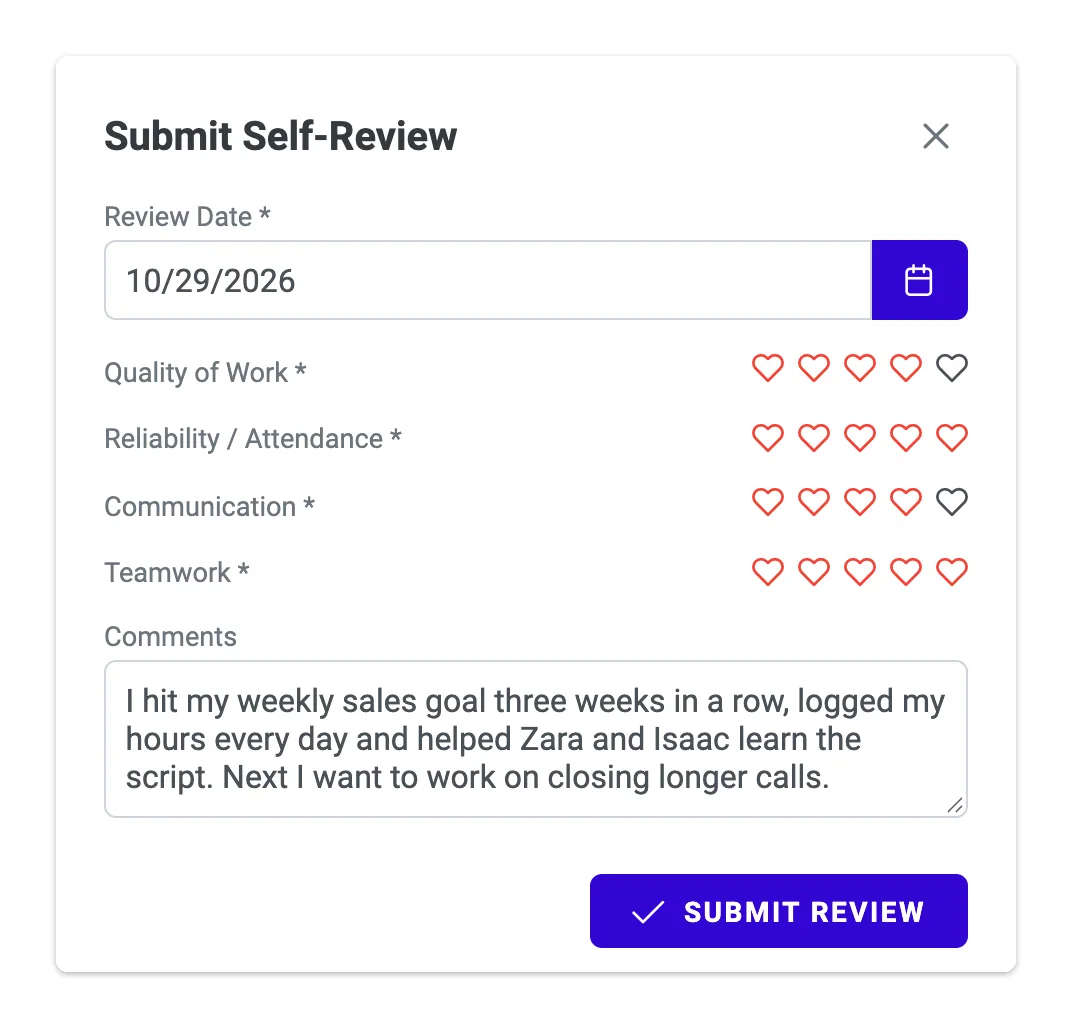
When the office opens a review cycle, a banner shows its name and dates and the Submit Self-Review button appears. A review rates every competency your office configured from 1 to 5 (employees click the hearts) and has an optional comment of up to 2,000 characters.
- Every review written about the employee, from leaders and their own, stays on the page, including from closed cycles. Leader reviews carry a green Leader badge and self-reviews a blue Self badge.
- Leaders also get Reviews I've Given and a Give a Review button for each direct report not yet reviewed in the current cycle.
- The reviewed employee is emailed when a leader submits a review.
- Each employee gets one leader review and one self-review per cycle, and a leader can only review their own direct reports.
Manage employees where you already work.
Click a name in HR › Employees to open the employee panel. It has Employee Information, Notes, Calls, and Comp tabs, status controls, the Is Leader? and 1st Sale Made switches, and round buttons for edit, files, delete, the key (send portal login), and Terminate Employee.
- Lists for Active, All, and Terminated Employees are sortable and filterable by owner, status, source, start date, state, role, job posting, Assigned Leader, location, last updated, and Is Leader?
- On the Comp tab, tick Hourly Wage (the pencil gives the person their own rate, and weeks already submitted keep their old rate) and each commission product the employee sells. Only ticked products appear on their timesheet.
- Terminate Employee asks for a reason, a date, optional exit-interview notes, and Eligible for Rehire? with a note. It disables the portal login and ends any open session immediately.
- To bring someone back, set the status to Active and choose Restore account (a new temporary password is emailed) or Start onboarding (the full process again).
Five tabs for everyone, and a sixth for leaders.
Everything an employee needs sits in one portal. Leaders get an extra Approvals tab.
| Tab | What it does |
|---|---|
| Account & Job | Edit first name, last name, email, and password. See role, hourly pay rate, start date, and leader (read-only). Pay History lists every approved week with regular and overtime hours and pay. |
| Time Off | Balance cards for each leave type, a request form, My Requests with status, and the Employee Calendar. |
| Timesheets | Monday to Sunday weeks, hours per day, a Sales section for ticked products, Save Draft, Submit for Approval, and My weeks. |
| Credentials | One card per license or certificate with an expiry badge, the dates, and the document link. |
| Reviews | The open-cycle banner, Submit Self-Review, and every review written about the employee. Leaders also get Reviews I've Given and Give a Review. |
| Approvals (leaders only) | Time Off requests and submitted Timesheet weeks from the leader's own team. |
The right person hears about it.
Time-off decisions are visible in the portal and are not emailed.
| When | Who is emailed | What it says |
|---|---|---|
| Onboarding is confirmed, staff send the portal login, or an account is restored | The employee | Portal address, login email, and temporary password |
| An employee uses “Forgot your password?” | The employee | A temporary password |
| An employee submits a week | The assigned leader | A “Timesheet submitted by” notice naming the employee, with the week, hours, and units sold |
| A leader approves or denies a week | The employee | The decision, plus the leader's note on a denial |
| An employee requests time off | The assigned leader | Dates, hours, and reason |
| A leader submits a review | The reviewed employee | “You have a new performance review from” the leader's name |
Everything in Employee Portal.
A personal login for every employee
Convert an applicant through onboarding and a login is created, or send one from the employee's panel with the key button. The employee gets an email with the portal address and a temporary 6-digit password, then chooses their own.
Weekly timesheets with hours and sales
Each week runs Monday to Sunday. Enter hours per day (0 to 24) and, if the office ticked sales products on the employee's Comp tab, units sold per product per day. Save Draft, then Submit for Approval.
Time off with live balances
Balance cards show the hours left for each leave type your office offers. Choose a category and dates, add an optional reason, and the hours are calculated for you.
Credentials with expiry badges
Employees add their own licenses and certificates, with a PDF if the type requires one. Each card carries an expiry badge: green, orange at 30 days or fewer, and red once expired.
Performance reviews
When the office opens a review cycle, employees submit a self-review and leaders review their direct reports, rating every competency from 1 to 5. Reviews stay on the page, including from closed cycles.
Leader approvals
Leaders see submitted timesheet weeks and time-off requests from their team in one Approvals tab. Approve, deny with an optional note, or Approve all.
Built so pay and access stay accurate.
Approvals, rates, and access follow clear rules, so what was approved is what gets exported.
Approved weeks are final
Approving a week locks it. A denial reopens the week with the leader's note so the employee can correct and resubmit.
Rate changes are not retroactive
Give an employee their own hourly rate on the Comp tab and weeks already submitted keep their old rate. New overtime settings apply only to weeks submitted from then on.
Employees see only their own pay
Pay History and sales show what a sale pays the employee, never what it earns the office.
Limited self-editing
Employees can change their first name, last name, email, and password. Role, pay rate, start date, and leader are changed by the office.
Access ends at termination
Terminating an employee disables the portal login and ends any open session immediately.
Leaders approve their own team
The Approvals tab shows requests from the employees assigned to that leader, and a leader can only review their own direct reports.
Rules and defaults at a glance.
How the portal behaves, including what it deliberately does not do.
Two switches make a leader.
Turn on Is Leader? in the leader's employee panel (they see the Approvals tab the next time they sign in), then set Assigned Leader on each team member. An employee with no assigned leader can submit a week, but nobody can approve it.
- Portal session
- About 10 hours by default, then the employee signs in again.
- Timesheet week
- Always Monday to Sunday. Future weeks cannot be opened.
- Hours
- 0 to 24 per day, up to 2 decimals. A week needs at least one hour or one sale to be submitted.
- Overtime
- Weekly only: hours above the office's threshold are paid at the hourly rate × the overtime multiplier. There is no daily overtime.
- Time off
- Weekdays × 8 hours. No half days, no holiday calendar, and no balance check when a request is made. Overlapping requests are refused. The reason can be up to 500 characters.
- Time-off decisions
- Visible in the portal. Not emailed.
- Credentials
- One per type per employee. PDF documents only. “Expiring soon” means within 30 days.
- Reviews
- Ratings 1 to 5. One open cycle at a time. One leader review and one self-review per employee per cycle.
- Personal info
- Employees can change first name, last name, email, and password. Everything else is changed by the office.
- Password
- At least 6 characters with an uppercase letter, a lowercase letter, a number, and a symbol.
- Payroll
- ATS Mako records approved hours and sales and exports CSV or Excel. It does not process payroll.
From busywork to a hiring engine.
The old way
- Chase timesheets by email and retype hours and sales when payroll is due.
- Field time-off requests by email and track balances by hand.
- Keep license and certificate expiry dates in a separate file.
With ATS Mako
- Employees submit hours and sales in the portal, and leaders approve with a click.
- Employees request time off and see their balance in the portal, and leaders approve or deny there.
- Employees keep credentials on file with expiry badges, and the office sees who holds what.
Related features
Employee Portal FAQ
How does an employee get a login?
Three ways. Through onboarding (the normal path), convert the applicant with the trophy button, complete the job offer and every onboarding step, mark Orientation Attended, and press Onboarding Confirmed: the employee becomes Active and a login is created. Or add an active employee from HR › Employees, open their panel, and press the key button. Or press the key button again to resend or reset. Each sends an email with the portal address and a temporary password.
How do employees sign in?
On your office's usual login page they press Employees (instead of Recruiters) and enter their email and password. The first time they use the temporary 6-digit password, then choose their own on the Restore Password page: at least 6 characters with an uppercase letter, a lowercase letter, a number, and a symbol. “Forgot your password?” sends a new temporary password to the registered email.
What can employees change about their own record?
First name, last name, email, and password, and the change applies at once. A new email address becomes the new login. Role, hourly pay rate, start date, and leader are read-only in the portal. Everything else is changed by the office.
Who approves timesheets and time off?
The employee's Assigned Leader. Two switches make a leader: turn Is Leader? on in the leader's employee panel (the Approvals tab appears the next time they sign in), and set Assigned Leader on each team member. An employee with no assigned leader can submit, but nobody can approve.
How are time-off hours calculated?
Each weekday counts as 8 hours and weekends are skipped. There are no half days and no holiday calendar, and no balance check when a request is made. Overlapping requests are refused. The leader is emailed when a request is made. Decisions are visible in the portal but are not emailed.
Does ATS Mako run payroll?
No. It records approved hours, sales, and commission and exports them as an Excel workbook or CSV for your payroll process. Approved timesheets also feed the Hours & Overtime and Sales reports. The export holds approved timesheets only, using the figures frozen when the leader approved each week.
What happens when an employee leaves?
Terminate Employee asks for a termination reason, a termination date, optional exit-interview notes, and Eligible for Rehire? with a note. Termination disables the portal login and ends any open session immediately. To bring someone back, set the status to Active and choose Restore account (a new temporary password is emailed) or Start onboarding (the full process again).
Build a faster, smarter hiring engine.
Start your 30-day free trial — no setup fees, no contracts. Or see ATS Mako in action.
30-day free trial · No setup fees · No long-term contracts