
Built-In Video Interviews
Book an interview and the video room already exists. The applicant joins from a link in any modern browser, and their whole file opens beside the video (details, notes, resume, files, and AI questions) so you never leave the meeting.
- created for every scheduled interview
- 1 room
- early join window for guests
- 5 min
- longest recorded answer
- 3 min
- attempts per recorded question
- 1 to 3
Book an interview and its private video room already exists.
ATS Mako runs video interviews inside the app: every scheduled interview automatically has its own private video room. Recruiters open the room, and the applicant joins from a simple link in any modern browser, with no account and nothing to install. During the call, “See profile” opens the applicant's file beside the video, so you read the resume, write notes, and change the status without leaving the meeting. For interviews nobody has to attend live, recorded video interviews let applicants answer your questions on camera whenever it suits them.
At a glance
- What it does
- Live video interviews inside ATS Mako with screen sharing, background blur, virtual backgrounds, camera and microphone selection, and noise suppression, with the applicant's profile one click away. Also includes recorded, one-way video interviews.
- Where to find it
- Open “Join Event” in the applicant panel or on the Interview Calendar. Recorded video interviews are built in Admin › Configuration › Workflows › Video Interviews.
- Who can join
- Signed-in staff are recognized as hosts. Applicants, and anyone with the link, join as guests with no sign-in.
- What you need
- A modern browser that is allowed to use the camera and microphone, and the room link in your confirmation and reminder messages through the <Event URL> merge tag.
- Good to know
- The live meeting has no call recording, no in-call chat, and no waiting room. Calendar invitations do not carry the room link.
Why recruiters care
- Nothing extra to set up. Set an Event Date and the room exists, with a “Join Event” link right under it.
- Applicants join from a link in any modern desktop or mobile browser. No account, no download.
- Keep the resume, notes, status fields, and AI Questions open beside the video with “See profile”, then set the Interview Status the moment you leave.
- Share your screen, blur your background, pick a virtual background, or switch on noise suppression from the control bar.
Why leaders care
- Interviews run inside the system your team already uses. The room belongs to the scheduled interview, and the Interview Status you set after the call feeds your reports.
- Live calls count on the dashboard as 1st Interviews or 2nd Interviews by scheduled date. Cancelled and rescheduled interviews are excluded.
- A rescheduled or cancelled interview closes its room, so an old link stops working.
- Send the same saved set of questions to any applicant as a recorded video interview. Each sent interview keeps its own frozen copy, so later edits do not change it.
Book it, share the link, join.
From booking to interview in the screens you already use.
- 1
Open the applicant
From any list or the Interview Calendar, so the profile panel opens on the right.
- 2
Set the interview
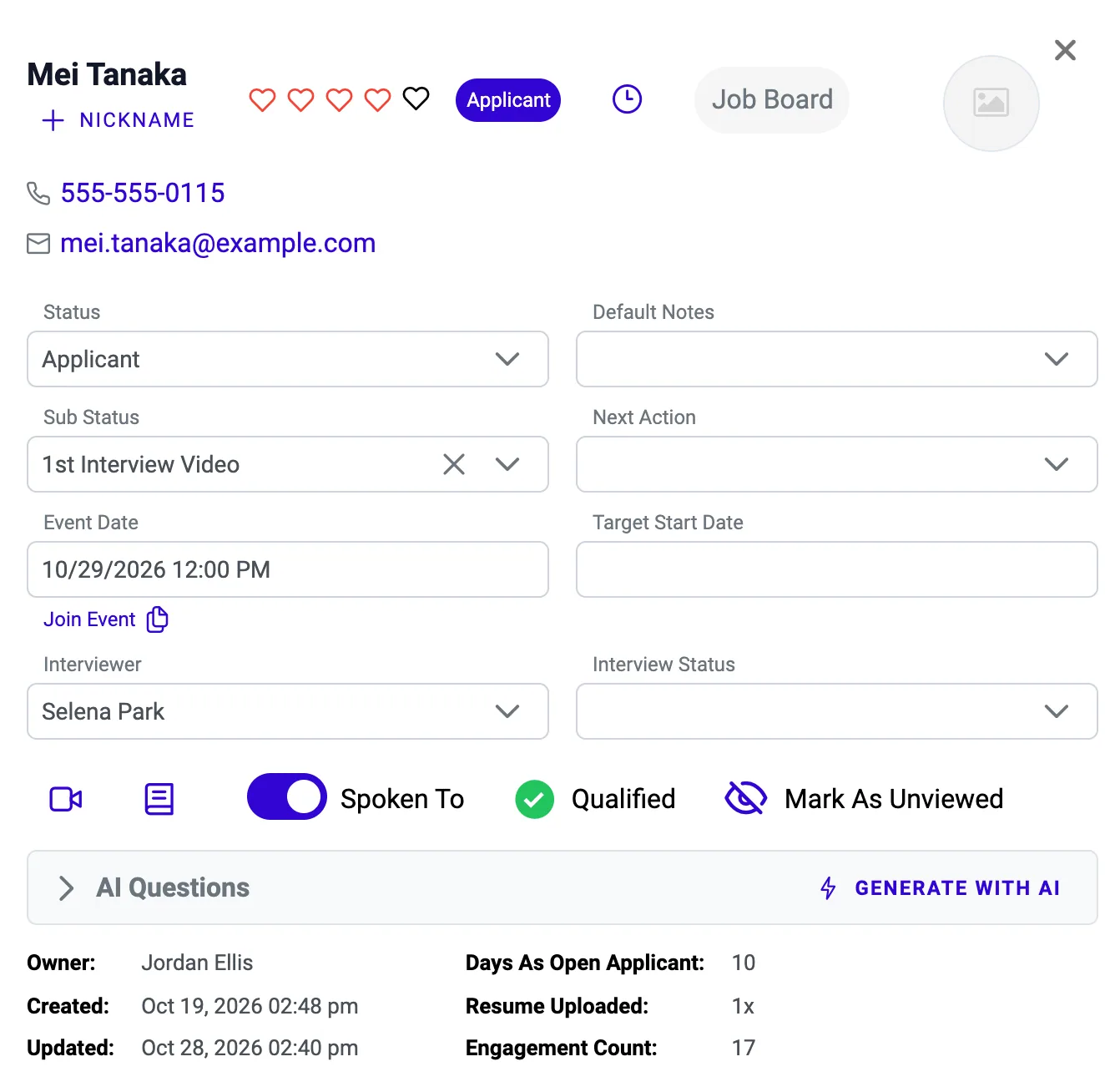
Choose a Sub Status that is an interview stage, for example 1st Interview Video. Set the Event Date and Event Duration, optionally choose an Interviewer, and press Save.
- 3
Share the link
A “Join Event” link and a copy icon appear under the Event Date. Your confirmation and reminder messages carry the link with the <Event URL> merge tag.
- 4
Open the room
At the time, open “Join Event” and press “Start meeting now” (or “Join meeting” once the window is open). Allow the camera and microphone.
- 5
Interview with the profile open
Press “See profile” to read the resume, ask the AI Questions, and write notes while you talk. Press Share screen to present.
- 6
Leave and record the result
Press Leave, then set the Interview Status and, if appropriate, change the sub status or convert the applicant to a new hire.
Set the Event Date. The room is ready.
There is no “start video call” button, because none is needed. When you book an interview for an applicant, its room already exists. Choose an interview sub status, set the Event Date and Event Duration, and press Save. Under the Event Date you see a “Join Event” link and a copy icon (tooltip “Copy Event URL”).
- You can also book from the Interview Calendar: click a time slot, or drag an applicant onto it, to open the Schedule Interview dialog.
- Booking adds an automatic note on the applicant, runs your interview automations (confirmation, reminders), and, if you have a Google or Microsoft calendar connected, adds the event to your calendar.
- Event duration runs from 1 to 1,440 minutes, and is 60 minutes when none is given.
- Hover over an event on the calendar to see its details, including a Meeting row with “Join Event” and the same copy icon.
Put the link in the messages you already send.
The applicant needs the room address, and the easiest way to deliver it is the <Event URL> merge tag. Add it to your Event Confirmation and Event Notice messages in Admin › Communication › Automations, and each applicant receives their own personal link, by email or text, when you book and again as a reminder.
- A notice can be scheduled up to 24 hours before or after the event, for example 24 hours or 1 hour before.
- Write <Event URL> into any email or text you send by hand, or copy the link with the copy icon and paste it anywhere.
- Calendar invitations do not carry it. The .ics file and the event on a Google or Microsoft calendar hold the title, time, and attendees, not the room link.
Guests from 5 minutes early. Staff any time before the end.
The page before the interview shows the interview title, the date and time with the length in minutes, and your office logo. Staff also see a countdown to the scheduled end and the “See profile” button. One card in the middle tells each visitor where they stand.
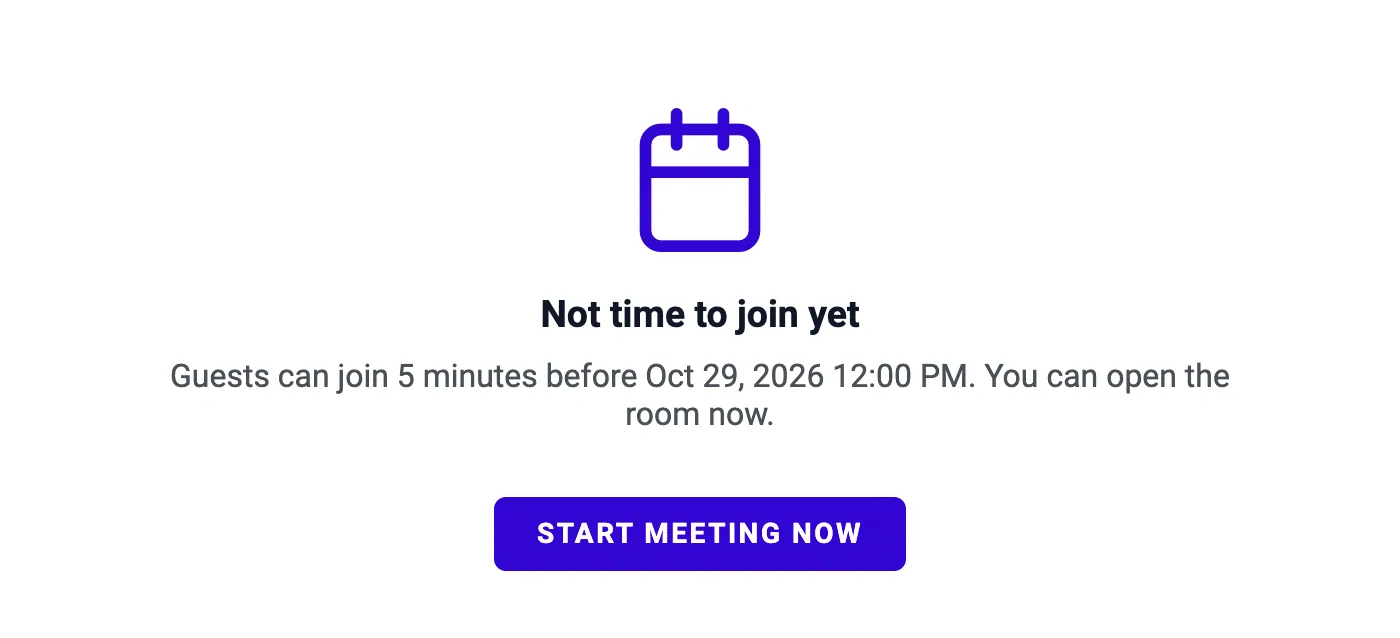
- Guests can enter from 5 minutes before the start until the scheduled end. Staff can open the room any time before the end.
- Inside the window the card reads “Ready when you are”. Press “Join meeting” and the browser asks for permission to use the camera and microphone.
- There is no separate camera preview page. The camera and microphone start the moment you press Join, and the gear menus inside the room switch devices.
- After the scheduled end the room reads “This meeting is closed” and can no longer be joined.
Everything about the applicant, in the same window as the call.
Press “See profile” and the applicant's full file docks beside the video. Read the resume, check the details and status, jot a note, look at their files, and read the AI interview questions without leaving the meeting, switching tabs, or opening a second app. That is the difference between a built-in room and a stand-alone call app.
- Applicant details and status: Status, Sub Status, Next Action, Event Date, Interviewer, and Interview Status, all editable in place.
- Resume, notes, and files in the same panel: the Resume, Applicant Information, Notes, Engagement, Calls, Activity Log, and Video Interviews tabs, plus attach file, email, and SMS buttons.
- “Add Note” opens a small draggable note box, so you write as you listen and save without leaving the call.
- AI Questions: generate eight interview questions tailored to the applicant and read them during the call. Edit and Convert to New Hire open in a new tab so the call stays open.
The one-way kind: ask once, answer any time.
A second video feature works without anyone online at the same time. You create a set of questions once, send it to an applicant, and the applicant records answers on camera whenever it suits them before an expiry date. You review the recordings later.
- Build it in Admin › Configuration › Workflows › Video Interviews in four steps: Details, Questions, Closing, and Review. Add a welcome and thank-you text or video, and an optional video of you asking each question.
- For each question set max attempts (1, 2, or 3 tries) and max response length (up to 3 minutes). Applicants record in the browser, as MP4, WebM, or MOV files up to 50 MB.
- Send it from the applicant's panel with the video icon: choose the interview and an expiration date and time. The applicant gets an email with a green “START VIDEO INTERVIEW” button and the deadline.
- When the last answer is in, the sender gets a completion email. The applicant's Video Interviews tab shows the status and plays back every recording.
One card tells every visitor where they stand.
The card in the middle of the waiting page changes with the time and the state of the interview.
| Card | When it shows | What the visitor can do |
|---|---|---|
| Not time to join yet | Before the join window. Guests see it more than 5 minutes before the start. Hosts see it too, with the note “You can open the room now.” | Hosts press “Start meeting now”. Guests wait. |
| Ready when you are | Within the join window. | Press “Join meeting”. The browser asks for permission to use the camera and microphone. |
| Joining the room | A few seconds after pressing Join. | Wait for the video to appear. |
| This meeting is closed | The interview has ended. | Nothing. The room can no longer be joined. |
| Interview unavailable | The interview no longer exists, or was cancelled, rescheduled, or marked no-show. | Ask the recruiter for the new link. |
| Unable to join | A connection problem. | Press Try again. |
Everything an interview needs, one bar at the bottom.
On small screens the middle buttons collapse behind a “…” Actions button.
| Control | What it does |
|---|---|
| Microphone button and gear | Mute and unmute. The gear opens Select a microphone and lists every microphone found. |
| Camera button and gear | Turn the camera on and off. The gear opens Select a camera. |
| Share screen | Share a whole screen, a window, or a browser tab. Both people can share at once. In Chrome and Edge a small floating window keeps the other person's face visible over your slides. |
| Blur | Blurs the background behind you. |
| Face track | Keeps the picture centered on your face. |
| Virtual background | Pick any image from your computer as your background. Click again to remove it. |
| Noise suppression | Filters background noise from your microphone. |
| Leave | Leaves the call. Others stay, and you can rejoin while the room is open. |
Live or recorded: pick per applicant.
Both live in the same applicant panel and on the same Interview Calendar.
| Compared | Live video interview | Recorded video interview |
|---|---|---|
| Timing | Both people online at the scheduled time. | The applicant records whenever it suits them before an expiry date. |
| How it starts | The room is created when you set an Event Date. | You send a saved question set from the applicant's panel. |
| What you get | A live conversation with the applicant's profile beside the video. | Recorded answers to review later, question by question. |
| On the calendar | A teal block at the scheduled time. | A yellow 15-minute block ending at the expiry time, with a camera icon. |
| Counted on the dashboard as | 1st Interviews or 2nd Interviews, by scheduled date. Cancelled and rescheduled are excluded. | 1st Video Interviews Sent or 2nd Video Interviews Sent. |
Everything in Video Interviews.
A private room for every interview
The room is created automatically when you set an interview Event Date. Open it with “Join Event” from the applicant panel or the Interview Calendar.
Guests join by link
No account and no install. Applicants, and anyone with the link, join as guests in any modern browser. Signed-in staff are recognized as hosts.
See profile beside the video
Opens the same applicant panel used everywhere in ATS Mako: resume, notes, status fields, AI Questions, and more. On phones it stacks under the video.
The controls an interview needs
Microphone and camera selection, share screen, background blur, face track, virtual background, and noise suppression, all in one control bar.
A clear join window
Guests can enter from 5 minutes before the start until the scheduled end. Staff can open the room any time before the end.
Recorded video interviews
A separate, one-way kind: applicants record answers (up to 3 minutes each) whenever it suits them before an expiry date, and you review the recordings later.
Built so the right people are in the room.
Rooms are tied to the interview, and the profile stays with your team.
A private room per interview
Every scheduled interview has its own private room at its own address, tied to that interview.
Old links stop working
After a reschedule, the old link shows that the interview has been rescheduled and can no longer be joined. Cancelled, No Showed, and Rescheduled statuses close the room too.
Hosts come from your sign-in
ATS Mako decides who is a host from your sign-in. Guests, including a recruiter who is signed out, cannot open the profile panel.
Effects stay on your computer
Blur, face track, and virtual background run in your own browser, so a background picture never leaves your computer.
Smooth on ordinary connections
Video is deliberately modest, about 640×360 for cameras and 1280×720 for a shared screen, so calls stay smooth.
Sent interviews stay as sent
Editing an active recorded video interview does not change the ones already sent. Each sent interview keeps a frozen copy.
Rules and limits at a glance.
What the live room does, and what it leaves out.
Add the link once, and every applicant gets their own.
Put <Event URL> in your Event Confirmation and Event Notice messages one time. Every applicant then receives a personal link, by email or text, when you book and again as a reminder.
- Guests can join
- From 5 minutes before the start until the scheduled end. Staff can open the room any time before the end.
- Event duration
- 1 to 1,440 minutes (60 minutes when none is given).
- Browsers
- Modern desktop and mobile browsers. The floating window that keeps the other person's face visible over your slides needs Chrome or Edge.
- Not included
- No call recording, no in-call chat, and no waiting room in the live meeting.
- Participants
- ATS Mako sets no participant limit.
- At the scheduled end
- The call is not force-ended. The host countdown reads “Time's up”.
- Video quality
- About 640×360 for cameras and 1280×720 for a shared screen.
- Display names
- Staff show their account name (very short names appear as “Recruiter” or “Interviewer”). Applicants appear as “Guest”.
- Calendar invitations
- They carry the title, time, and attendees, not the room link. Use the <Event URL> merge tag.
- Employee Portal
- Employees can host as “Interviewer” but do not see the “See profile” button.
- Counted on the dashboard as
- 1st Interviews or 2nd Interviews, by scheduled date. Cancelled and rescheduled are excluded.
- Recorded interviews
- Up to 3 minutes per answer and 1, 2, or 3 attempts per question (starting a recording uses an attempt). MP4, WebM, or MOV up to 50 MB, recorded in the browser with no file upload on that page.
From busywork to a hiring engine.
The old way
- Create a meeting in a separate tool and paste its link into every message.
- Ask applicants to install software or make an account to join.
- Flip between the video window and the ATS to read the resume and take notes.
With ATS Mako
- Set the Event Date. The room exists, and the “Join Event” link sits under it.
- The applicant opens the link and joins from a modern browser.
- Click “See profile” and the resume, notes, and status fields sit beside the video.
Related features
Video Interviews FAQ
Do applicants need an account or software?
No. They open the link in a modern desktop or mobile browser and press “Join meeting”. The browser asks for permission to use the camera and microphone, and there is nothing to install. Applicants appear in the room as “Guest”.
How does the applicant get the link?
Add the <Event URL> merge tag to the messages your office already sends. In Admin › Communication › Automations, edit the Event Confirmation and Event Notice (Before or After) messages and put <Event URL> in the text. Each applicant then gets their own link, by email or text, when you book and again as a reminder. You can also write <Event URL> into any email or text you send by hand, or copy the link with the copy icon and paste it anywhere.
Does the calendar invitation include the video link?
No. The calendar invitation (.ics file) and the event added to a recruiter's Google or Microsoft calendar carry the title, time, and attendees, but not the room link. Make sure your confirmation and reminder messages include <Event URL> so the applicant has it.
When can people join?
Guests can enter from 5 minutes before the start until the scheduled end. Staff can open the room any time before the end. Before the window opens, a guest sees “Not time to join yet”, and a host sees the same card with a note that the room can be opened now and a “Start meeting now” button. A call in progress is not cut off at the scheduled end: the host countdown reads “Time's up”.
Can I record the call, chat, or use a waiting room?
Not in the live meeting. There is no call recording, no in-call chat, and no waiting room. Write notes in the applicant's profile beside the video, and use Share screen to present. If you want recorded answers to review later, send a recorded video interview instead.
What happens if I reschedule or cancel the interview?
Rescheduling creates a new time slot and the old room link stops working: anyone who opens it sees that the interview has been rescheduled and can no longer be joined. Setting the Interview Status to Cancelled, No Showed, or Rescheduled closes the room too.
How do recorded video interviews work?
You build a set of questions once in Admin › Configuration › Workflows › Video Interviews, then send it to an applicant with an expiry date and time. The applicant records answers in the browser whenever it suits them: up to 3 minutes per answer, with 1 to 3 attempts per question. When the last answer is in, the sender gets a completion email, and you play every recording from the applicant's Video Interviews tab. Recordings are MP4, WebM, or MOV files up to 50 MB.
Build a faster, smarter hiring engine.
Start your 30-day free trial — no setup fees, no contracts. Or see ATS Mako in action.
30-day free trial · No setup fees · No long-term contracts