
Sales Reports: Revenue, Commission & Adjusted Gross Income
See what your team sold, what it earned the office, and what it cost in commission. Filter by date, leader, team member, campaign, or product, then download the report or email it from the page.
- KPI cards with change versus the previous period
- Countless
- download formats: Excel, PDF, CSV
- 3
- team members on the leaderboard
- Top 8
Revenue, commission cost, and adjusted gross income in one report.
Sales Reports brings together the sales recorded in your office's approved timesheets. For the period you choose, it shows the revenue earned, the commission paid, and what is left (called “Adjusted gross income” in the app), and compares each with the previous period. Filter by date, leader, team member, campaign, or product, study the charts, leaderboard, and detail table, then download the report as Excel, PDF, or CSV, or email it to your team.
At a glance
- What it does
- Shows revenue earned, commission paid, and Adjusted gross income for a period, compared with the previous period, with charts, a leaderboard, and a detail table.
- Where to find it
- The $ icon in the top bar (its own page, /sales-reports).
- Who can use it
- Users who have the Sales Reports permission switched on in Admin › Configuration › Users. It is off by default, and administrators need it too.
- Data source
- Only sales from weekly timesheets that a leader has approved. Draft, pending, and denied weeks never count.
- Good to know
- The page opens on This month, grouped by team member, with everyone included.
Why sales managers care
- See revenue, commission cost, and adjusted gross income for any period, each with its change versus the previous period of the same length.
- Filter to one leader's whole team, one campaign, or one product, then regroup the detail by team member, leader's team, campaign / client, product, or day.
- The leaderboard ranks the top eight team members by gross revenue, with units, commission, and adjusted gross income on each line.
- Email the same report to team members without leaving the page.
Why finance cares
- Only sales from weekly timesheets that a leader has approved count. Draft, pending, and denied weeks never do.
- Product names and prices are frozen when the employee submits the week, so the report reflects what was recorded at the time.
- Excel keeps every number numeric with currency and percentage formats. CSV gives plain detail rows for other tools.
- The same approved weeks feed the payroll export, so sales and pay come from one source.
From timesheet to report.
The report builds itself from approved weeks. You choose how to look at it.
- 1
Employees log sales
Each employee logs units sold per product per day on their weekly timesheet. The products they can log are the ones ticked on their Comp tab.
- 2
The week is submitted
When the employee submits the week, the product names and prices are frozen.
- 3
A leader approves
When the leader approves the week, its sales join this report and the payroll export.
- 4
Open Sales Reports
Click the $ icon in the top bar. The page opens on This month, grouped by team member, with everyone included.
- 5
Set the period and filters
Choose a period, then narrow by Leader, Team member, Campaign / Client, or Product. Pick how to group the detail.
- 6
Read, download, or email
Read the cards, charts, leaderboard, and detail table. Download Excel, PDF, or CSV, or press Email report.
Narrow it to the team, campaign, or product you care about.
A period and four filters sit above the cards. A line under them spells out the period in words, for example “Oct 1 – Oct 31, 2026”, and “Clear filters” appears when any filter is in use.
- Period: Today, This week, Last week, This month, Last month, Last 30 days, or Custom. Weeks run Monday to Sunday.
- Leader: choose one or more leaders. Each leader's whole team is included, as “Each leader and everyone assigned to them”.
- Team member, Campaign / Client, and Product: choose any number of each, with a search box inside. Choosing leaders narrows the team-member list, and choosing campaigns narrows the products.
- Group the detail by: Team member (the default), Leader's team, Campaign / Client, Product, or Day.
See the shape of the period, and who drove it.
Under the cards, a sales-over-time chart shows units sold as bars and gross revenue and adjusted gross income as lines. A doughnut splits revenue by campaign, and a leaderboard ranks your sellers.
- One bar per day for up to 45 days, per week for 46 to 180 days, and per month beyond that. Days without sales still show as empty bars.
- Gross revenue by campaign: a doughnut with the total in the middle and a list of every campaign with its dollars and share of the total.
- Leaderboard: the top eight team members by gross revenue, each with a bar and a line such as “26 units · commission $12,270 · adjusted gross $19,745”.
- Everyone appears in the Detail table and in the Excel and PDF files.
Open any number down to the line.
The Detail table is the deepest level of the report. Its columns are Team member, Campaign / Client, Product, Quantity, Revenue per sale, Commission per sale, Gross revenue, Total Commission, and Adjusted gross income, with a Total row at the bottom.
- The “Group the detail by” switch decides the group rows. Click a group to open or close its lines, or use Expand all. Groups start open when there are 12 or fewer.
- Leader's-team groups use each person's current assigned leader. Sellers with no leader are listed under “No leader”.
- If a product's price changed during the period, revenue per sale and commission per sale are shown as averages.
- Teams are read as they are today: if someone's leader changes, their past sales move to the new leader's team in new reports.
Take the report with you, exactly as it looks on screen.
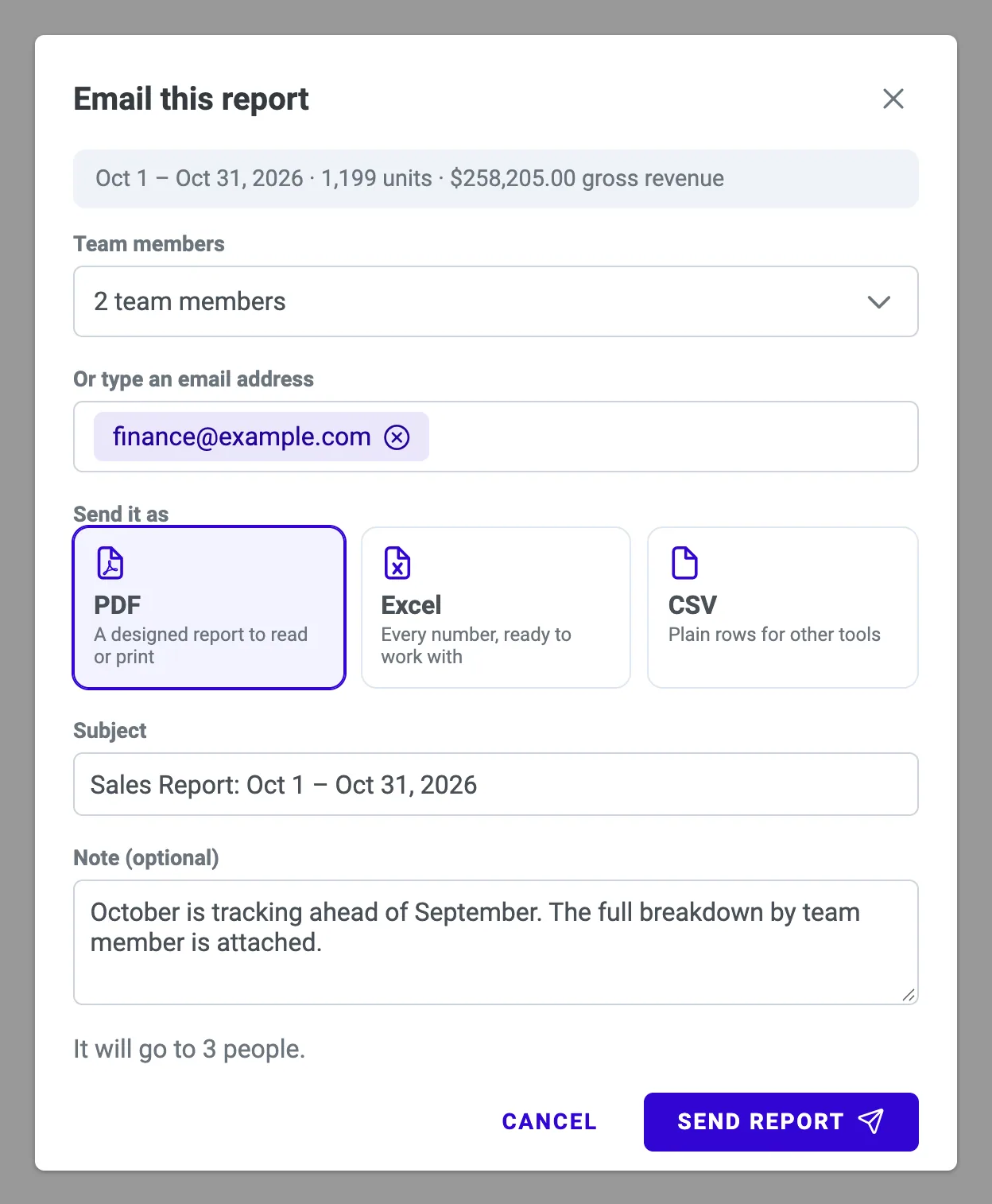
The download buttons and Email report at the top right use exactly what is on screen: the same period, filters, and grouping. Press Email report to send it without leaving the page.
- Choose people from Team members (anyone in your office who has an email), and type other addresses followed by Enter. Addresses that look invalid are flagged in red.
- Choose Send it as: PDF (a designed report to read or print), Excel (every number, ready to work with), or CSV (plain rows for other tools).
- Edit the Subject (prefilled “Sales Report: Oct 1 – Oct 31, 2026”) and add an optional Note, then press Send Report.
- Each recipient gets their own email with the file attached. You are told if any address was rejected.
What each card means.
Under every card, an arrow compares it with the previous period of the same length, in green for up and red for down. Commission is shown in neutral grey.
| Card | Meaning |
|---|---|
| Gross revenue | What your office earned: units sold times the “Commission earned” of each product. |
| Commission cost | What was paid to the team: units times “Commission paid per sale”. |
| Adjusted gross income | Gross revenue minus commission cost (the profit measure). The note under it shows the margin, for example “Margin 57.9%”. |
| Units sold | Total quantity sold. |
| Team members who sold | How many different people sold at least one unit. |
Three formats, one report.
Files are named like sales-report-2026-10-01-to-2026-10-31.xlsx.
| Format | What you get |
|---|---|
| Excel (.xlsx) | Four sheets: Summary (period, filters, all key numbers, and the comparison with the previous period), By team member, By campaign, and Detail. Numbers stay numeric with currency and percentage formats. |
| PDF (.pdf) | A designed landscape report: title, period and filters, the key numbers with change versus the previous period, the by-team-member and by-campaign tables, and the detail. |
| CSV (.csv) | The detail only: Group, Team member, Campaign / Client, Product, Quantity, Revenue per sale, Commission per sale, Gross revenue, Commission cost, Adjusted gross income, then a Total line. |
| Email report | The same report sent as PDF, Excel, or CSV to team members or typed addresses. Each recipient gets their own email with the file attached. |
Everything in Sales Reports.
Key numbers at a glance
Gross revenue, Commission cost, Adjusted gross income, Units sold, and Team members who sold, each with an arrow comparing it with the previous period of the same length.
Filters that narrow each other
Period, Leader, Team member, Campaign / Client, and Product. Choosing leaders narrows the team-member list, and choosing campaigns narrows the products.
Sales over time
Bars for units sold, lines for gross revenue and adjusted gross income. Days without sales still show as empty bars so the chart keeps its shape.
Revenue by campaign and a leaderboard
A doughnut splits gross revenue by campaign with each share of the total. The leaderboard shows the top eight team members by gross revenue.
A detail table you can regroup
Group the detail by Team member, Leader's team, Campaign / Client, Product, or Day. A Total row sits at the bottom.
Download or email
Excel, PDF, or CSV, or Email report to your team. Both use exactly what is on screen: the same period, filters, and grouping.
Built so the totals hold up.
These rules are part of how Sales Reports works.
Approved weeks only
Only sales from weekly timesheets that a leader has approved count. Draft, pending, and denied weeks never do.
Prices frozen at submission
When the employee submits the week, the product names and prices are frozen. A blue note under the cards tells you how many products have no Commission earned set.
Commission only
Adjusted gross income subtracts commission only. Wages, overtime, and other costs are not included.
Counted by the day of the sale
A period that cuts a week in half counts only the sale days inside it, provided the whole week was approved.
One source with payroll
When a leader approves a week, its sales join this report and the payroll export together.
Off until you switch it on
The Sales Reports permission is off by default, and administrators need it too.
Rules and limits at a glance.
The numbers to know before you build a big report.
Set “Commission earned” before the week is submitted.
A week submitted before a product's “Commission earned” was filled in keeps $0 revenue. The blue note under the cards tells you how many products still have none set.
- Period
- Options: Today, This week, Last week, This month, Last month, Last 30 days, or Custom.
- Rows read
- Up to 100,000 sale lines (one person, one product, one day) for the period plus the previous period. Shorten the period if you see “too many sales”.
- Chart buckets
- One bar per day for up to 45 days, per week for 46 to 180 days, per month beyond that.
- Leaderboard
- The top eight team members by gross revenue.
- Detail groups
- Groups start open when there are 12 or fewer. Expand all opens everything.
- Partial periods
- For “This week” or “This month”, the whole calendar period (including days still to come) is compared with a full previous period, so mid-month the arrows normally point down.
- Email recipients
- Up to 25 people in total.
- Email file size
- 8 MB. Use Download if the report is bigger.
- Email frequency
- 10 report emails per user per hour, and 100 per office per day.
- Email needs
- At least one sale on screen.
- Default view
- This month, grouped by team member, with everyone included.
From busywork to a hiring engine.
The old way
- Add up units sold from each person's weekly timesheet by hand.
- Multiply by price and commission in a spreadsheet, then subtract to see what is left.
- Rebuild the sheet to look at one campaign or one leader's team.
With ATS Mako
- Pick a period and read the key numbers, each compared with the previous period.
- Filter by leader, team member, campaign, or product and regroup the detail with one switch.
- Download Excel, PDF, or CSV, or email the report, using exactly what is on screen.
Related features
Sales Reports FAQ
Where do the numbers come from?
Employees log the units sold per product per day on their weekly timesheet. The products they can log are the ones ticked on their Comp tab, taken from the product list in Settings › Timesheets & Comp. When the leader approves the week, its sales join this report and the payroll export. Draft, pending, and denied weeks never count.
What is Adjusted gross income?
It is gross revenue minus commission cost, the profit measure in this report. The note under the card shows the margin, for example “Margin 57.9%”. It subtracts commission only: wages, overtime, and other costs are not included.
Who can see Sales Reports?
Users who have the Sales Reports permission switched on in Admin › Configuration › Users. It is off by default, and administrators need it too. The page opens from the $ icon in the top bar.
Why do the arrows point down in the middle of the month?
For “This week” or “This month”, the app compares the whole calendar period (including days still to come) with a full previous period, so mid-month the arrows normally point down. The previous period is the same number of days ending the day before yours starts, with the same filters applied.
Why do some sales show $0 revenue?
Prices are frozen when the employee submits the week. A week submitted before a product's “Commission earned” was filled in keeps $0 revenue. A blue note under the cards tells you how many products have no Commission earned set.
How far back can I report?
Pick any of the period options, from Today to a Custom range. The report reads up to 100,000 sale lines (one person, one product, one day) for the period plus the previous period. If you see “too many sales”, shorten the period.
Are there limits on emailing the report?
Email report needs at least one sale on screen. You can send to up to 25 people in total. The attached file can be up to 8 MB (use Download if the report is bigger), and each user can send 10 report emails per hour, with 100 per office per day.
Build a faster, smarter hiring engine.
Start your 30-day free trial — no setup fees, no contracts. Or see ATS Mako in action.
30-day free trial · No setup fees · No long-term contracts