
Ask the Shark: AI Assistant for Your Recruiting Data
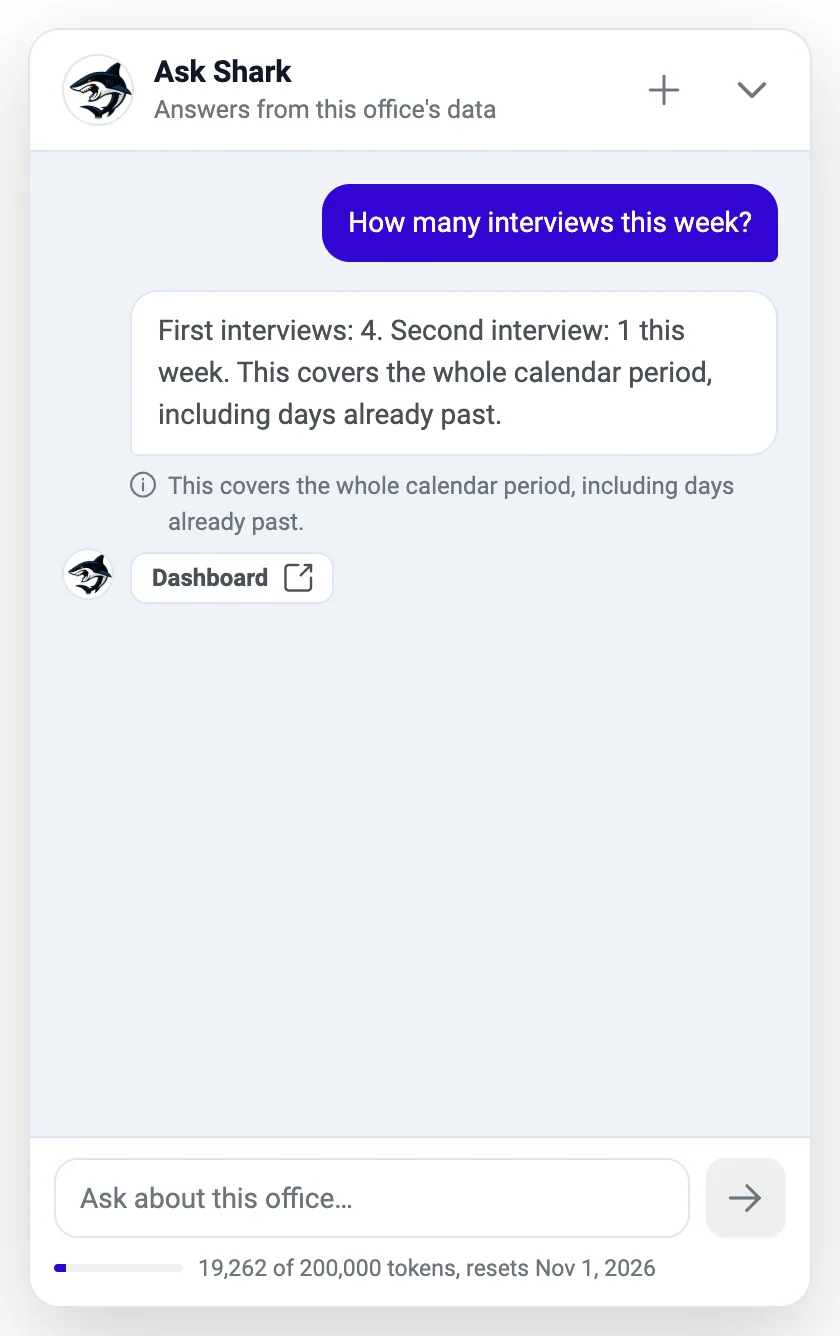
Click the shark on any page, ask “How many interviews this week?”, and read the answer in seconds. A read-only AI assistant that answers only from your own office’s data.
- from any page
- 1 click
- kinds of questions it understands
- 7
- never changes, sends, or schedules
- Read-only
- only, checked on every result
- Your office
Answers about your office, without opening a report.
Ask the Shark is a built-in assistant that answers questions about your own office's data in plain English. Instead of opening a report, setting filters, and counting rows, you click the shark, type a question such as “How many interviews this week?”, and read the answer in a few seconds. It is read-only: it looks things up and never changes, sends, or schedules anything.
At a glance
- What it does
- Answers questions about employees, applicants, interviews, hires, and recruiting activity over a period of time, and finds a person by name.
- Where to find it
- A round shark button floating on every page of the office app (bottom-right corner by default).
- Who can use it
- Signed-in office users. It is not shown inside the Employee Portal.
- What it costs
- Questions draw from your office's monthly allowance of AI tokens. A meter at the bottom of the chat shows what is left.
- Good to know
- Answers only come from the office you are working in. Nothing is ever written back.
Why recruiters care
- Skip the report builder. Ask “Who booked the most interviews last month?” and get the ranked answer.
- Look up an applicant by name, nickname, phone number, or email from any page, then open their profile in one click.
- Check this week's and next week's interview load without leaving the screen you are working on.
- Every answer comes with a source button, so you can verify the figure on the page it came from.
Why leaders care
- Get hires year to date, first interviews last quarter, or the funnel for any period in seconds.
- See who uploaded the most applicants or booked the most interviews, ranked by record owner.
- Answers come only from your own office's records, and every result is checked before you see it.
- The assistant is read-only. It cannot create, edit, delete, send, or schedule anything.
Ask, read, verify.
No setup and no filters. The whole loop takes a few seconds.
- 1
Click the shark
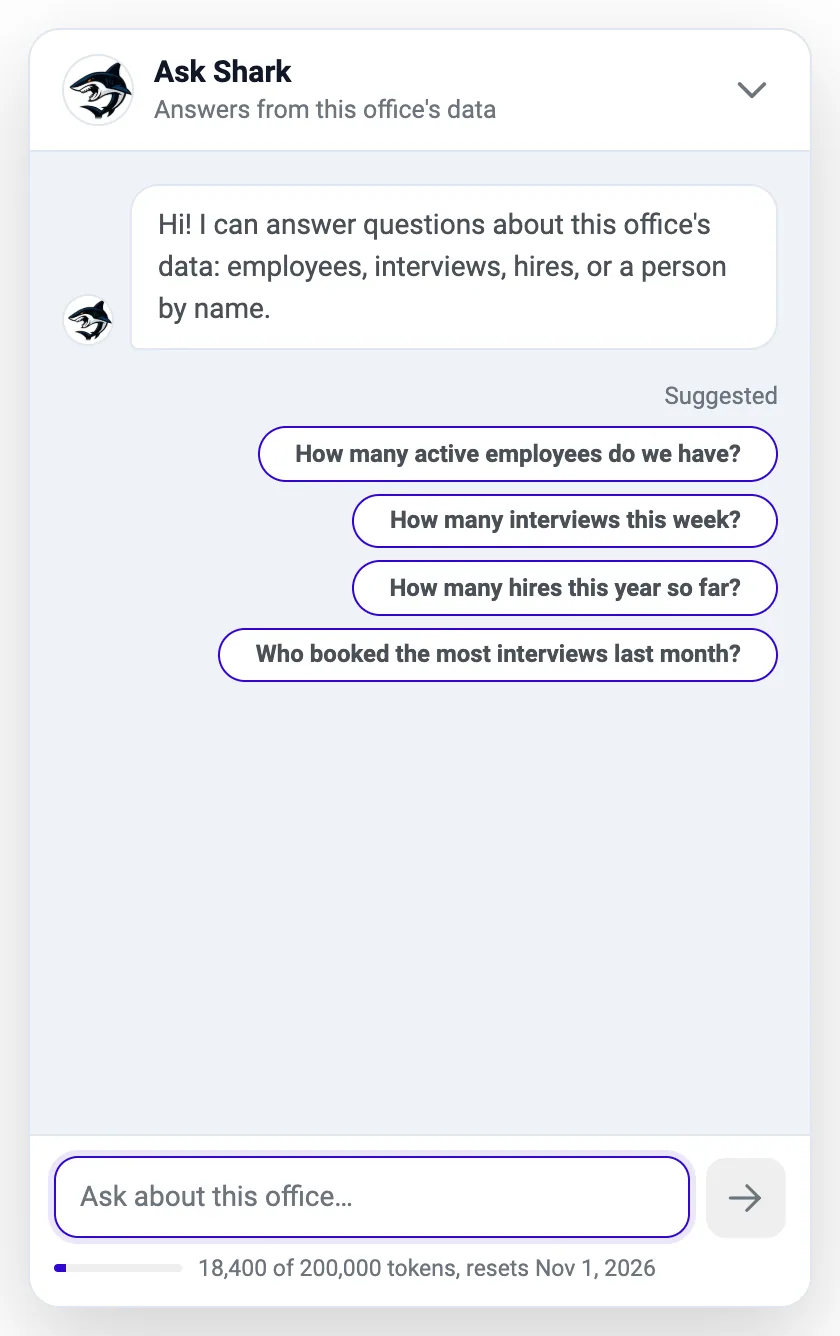
The floating shark is on every page, so you never leave the screen you are working on. The chat panel opens right next to it.
- 2
Pick a chip or type
Click one of four suggested questions, or type your own and press Enter. The question box accepts up to 500 characters.
- 3
Wait a moment
Three animated dots show the Shark is working. The question box is locked while it answers.
- 4
Read the answer
You get the answer sentence, a small note on how to read it, and, for lists of people, rows with name, type, and a colored status tag.
- 5
Check the source
Use the source button under the answer to jump to the page the figure comes from, or click a person to open their profile.
- 6
Follow up
Ask a follow-up in the same conversation, or press + to start a fresh one.
One click away, and out of your way.
The shark button floats on every page. Drag it to the side of the screen where it bothers you least; when you let go it slides to the nearest left, right, or bottom edge, and the app remembers the spot on that browser.
- Click it once and the chat panel opens right next to it.
- Tuck it away with the arrow in the panel header, by clicking the shark again, or by pressing Esc. Your conversation stays in place while the page is open.
- On phones and narrow windows the panel fills the whole screen so it is easy to read.
- Four ready-made questions get you started, and they disappear after your first question.
Every answer shows its work.
The answer sentence gives you the number or the names directly. A small note with an “i” icon tells you how to read it, for example that a count covers the whole calendar period including days already past, or that duplicate and blocked applicants are left out.
- A source button (Dashboard, Employees, Applicants) closes the panel and opens the page where you can double-check the figure.
- When the answer is a list of people, each row shows initials, name, Employee or Applicant, and a status tag: green for active or hired, amber for interview or pending, red for terminated, blocked, or rejected.
- The first four people are shown; Show more reveals up to ten. Click a row to open that person's profile panel.
- If a question is outside what the Shark supports, it says so under “Outside what I can answer” instead of guessing.
Ask the way you would ask a colleague.
It understands the last 30, 60, or 90 days, last month, last quarter, last year, year to date, lifetime, or two exact dates. For the calendar it understands this week, next week, and this month, with weeks running Monday to Sunday in your office's time zone.
| Kind of question | What you get back | Examples you can type |
|---|---|---|
| How many… | A count of applicants or employees, optionally in one status. | “How many active employees do we have?” · “How many applicants are in the system?” |
| Who are… | The names of people in a status (names and status only). | “Who are our active employees?” · “List the applicants I own” |
| Totals for a period | Office-wide recruiting totals for a date range: applicants uploaded, texts and emails sent, first and second interviews, no-shows, hires, and more. | “How many hires this year so far?” · “How many first interviews last quarter?” |
| Who did the most… | The same activity ranked by record owner (recruiter). | “Who booked the most interviews last month?” · “Which rep uploaded the most applicants?” |
| Upcoming interviews | First- and second-round interviews on the calendar this week, next week, or this month. | “How many interviews this week?” · “What does next week look like?” |
| Find a person | Looks someone up by name, nickname, phone number, or email and shows name and status. | “Do we have an Ada Lovelace?” · “Who is 555-123-4567?” |
| Funnel | The hiring pipeline for a period: uploaded, first interviews, second interviews, hires, and the uploads-to-hires percentage. | “What does our funnel look like?” · “Pipeline for the last 90 days” |
Everything in Ask the Shark.
Plain-English questions
Ask the way you would ask a colleague. Type up to 500 characters, press Enter to send, and Shift + Enter for a new line.
Counts, lists, and rankings
How many active employees, who the active employees are, and who booked the most interviews or uploaded the most applicants, ranked by record owner.
Hiring funnel on request
Ask “What does our funnel look like?” and get uploaded, first interviews, second interviews, hires, and the uploads-to-hires percentage for the period.
Find a person fast
Look someone up by name, nickname, phone number, or email. You see their name, whether they are an employee or applicant, and their status, then open the profile with one click.
Source buttons on every answer
A shortcut such as Dashboard, Employees, or Applicants takes you to the page the figure comes from so you can double-check it.
A meter, not a surprise
A thin bar under the question box shows how much of your office's monthly AI allowance is left and when it resets.
Built so the numbers hold up.
An assistant is only useful if you can rely on what it says. These rules are part of how the Shark works.
Your office only
The office comes from your sign-in, never from the question, and every result is checked so that no other office's record can slip in.
The AI cannot invent figures
It may only phrase an answer that was already computed from your data. A sentence with a number that is not in the retrieved data is discarded and replaced with a plain template answer.
Applicant text cannot steer it
Applicants write much of what is stored. The step that chooses what to look up never sees that text, so a message hidden in a record cannot change what the Shark does.
Read-only by design
It will not create, edit, delete, send, or schedule anything. It only reads.
No sensitive details in answers
It will not show phone numbers, emails, addresses, Social Security numbers, or dates of birth, and it does not read notes, resumes, or message text.
Easy to verify
The source button always takes you to the page where the same figure can be checked.
Rules and limits at a glance.
What the Shark answers, and what it deliberately leaves alone.
Be specific for a sharper answer.
“How many hires last quarter?” gets a better answer than “How are we doing?”. Name the time period and the status.
- Question length
- Up to 500 characters. Enter sends, Shift + Enter starts a new line.
- People shown
- The first four, with Show more revealing up to ten.
- Periods
- Last 30, 60, or 90 days, last month, last quarter, last year, year to date, lifetime, or two exact dates.
- Calendar questions
- This week, next week, and this month, with weeks running Monday to Sunday in your office's time zone.
- Not calculated
- Averages, trends, and how long something took (for example average time to hire).
- Status your office does not use
- It refuses rather than answering with a false “0”.
- Monthly allowance
- Each office has a monthly allowance of AI tokens, shown under the question box. It resets at the start of each month.
- Where it appears
- Every page of the office app. It is not shown inside the Employee Portal.
From busywork to a hiring engine.
The old way
- Open a report, set the date range and filters, then count the rows yourself.
- Ask a colleague to pull the numbers before a meeting.
- Scroll through lists to find one applicant by phone number.
With ATS Mako
- Click the shark, type the question, and read the answer.
- Get a count, a ranking, or a funnel for exactly the period you name.
- Type a name, nickname, phone number, or email and open the profile.
Related features
Ask the Shark FAQ
What can I ask the Shark?
Seven kinds of questions: how many applicants or employees (optionally in one status), who they are, office-wide recruiting totals for a period, who did the most (ranked by recruiter), upcoming interviews this week, next week, or this month, finding a person by name, nickname, phone, or email, and your hiring funnel for a period.
Can the Shark change or send anything?
No. It is read-only. It will not create, edit, delete, send, or schedule anything. It only looks things up.
Can it see other offices' data?
No. Your office comes from your sign-in, never from the question, and every result is checked so that no other office's record can appear.
Does it show phone numbers, emails, or Social Security numbers?
No. Answers never include phone numbers, emails, addresses, Social Security numbers, or dates of birth. The Shark also does not read notes, resumes, or message text.
Could the AI make up a number?
The AI is only allowed to phrase an answer that was already computed from your data. If a sentence contains a number that is not in the retrieved data, the sentence is discarded and a plain template answer is used instead. Every answer also has a source button so you can verify it.
What happens when the monthly allowance runs out?
Each office has a monthly allowance of AI tokens, shown by the meter under the question box. When it is used up, the question box stays locked until the reset date shown, then works again.
Who can use it?
Any signed-in office user. The shark button floats on every page of the office app. It is not shown inside the Employee Portal.
Build a faster, smarter hiring engine.
Start your 30-day free trial — no setup fees, no contracts. Or see ATS Mako in action.
30-day free trial · No setup fees · No long-term contracts