
Apply Here Page Designer
Design the page candidates apply on. Choose a theme and colors, decide which questions appear and whether they are required, arrange the fields, and let candidates answer with a video.
- custom questions per page
- 20
- question types, including video answers
- 6
- themes, plus your own colors
- 5
- per video answer
- 250 MB
Design your own application form, and every answer lands on the profile.
Every office has a public Apply Here page where candidates apply directly. The page designer lets you choose a theme and colors, decide which questions appear and of what type, mark each one required or optional, and arrange the fields on the form. Candidates can answer a question by uploading a video. Everything they submit is waiting in the applicant's profile.
At a glance
- What it does
- Lets an office design its own application form: theme, colors, field order and width, and up to 20 custom questions.
- Where to find it
- Admin (wrench icon) › Configuration › Settings › Apply Here Page.
- Who can use it
- Users with the Settings permission. Applicants need no account.
- Public address
- Your office's own Apply Here address, one page per office. The link and a copy icon are in the designer.
- Good to know
- Changes take effect as soon as you press Save Changes. There is no separate draft or publish step.
Why recruiters care
- Ask your screening questions up front: Yes / No, short or long answers, dropdowns, checkboxes, or a video answer.
- Read each application as an automatic “Application questions” note on the Notes tab, with every question and answer in card order.
- Play video answers from the applicant's Video Interviews tab, with a built-in player.
- A returning applicant is matched to their existing record by email or phone, and your “By Sub Status” automations run for the new applicant as usual.
Why leaders care
- The page looks like your company: five themes, your own background and accent colors, and your logo and company name.
- Changes take effect as soon as you press Save Changes. There is no separate draft or publish step.
- Required fields stay required, and the Text Message Consent opt-in is built into the form.
- Applicants need no account. Half-width fields sit side by side on wide screens and stack on phones.
Design it, save it, share it.
Six steps from the standard card to your own application page.
- 1
Open the designer
Go to Admin › Configuration › Settings › Apply Here Page. The palette is on the left, and a live preview of the card is on the right.
- 2
Add fields and questions
Drag the fields and questions you want onto the card. Type each question, edit the choices, and tick “Applicants must answer this question” where needed.
- 3
Arrange the card
Use the arrows icon to make a tile half or full width, and the up and down arrows to reorder.
- 4
Choose a look
Pick one of five themes and, if you want, a background color and an accent color.
- 5
Fix and save
Anything highlighted in red blocks saving until you fix it. Press Save Changes. A green message reads “Your Apply Here page was updated.”
- 6
Check and share
Open “View your Apply Here page” to check it, then share the link. The copy icon copies it.
Drag it on. See it as applicants see it.
The designer has two halves. On the left is a palette of everything you can put on the form. On the right is the card exactly as applicants see it, painted in your chosen theme.
- Drag items from the palette onto the card, drag them around to reorder, or use the + and arrow buttons instead of dragging.
- The arrows icon switches a tile between half a row and a full row. Resume, Address, Consent, Long answer, Checkboxes, and Video answer are always full width.
- Each tile has a drag handle, up and down arrows, and a red x to take it off. Required fields show a lock icon instead of the x.
- A dashed strip at the bottom reads “Drop a field or a question here to add it at the end”.
Five themes, and the colors are yours.
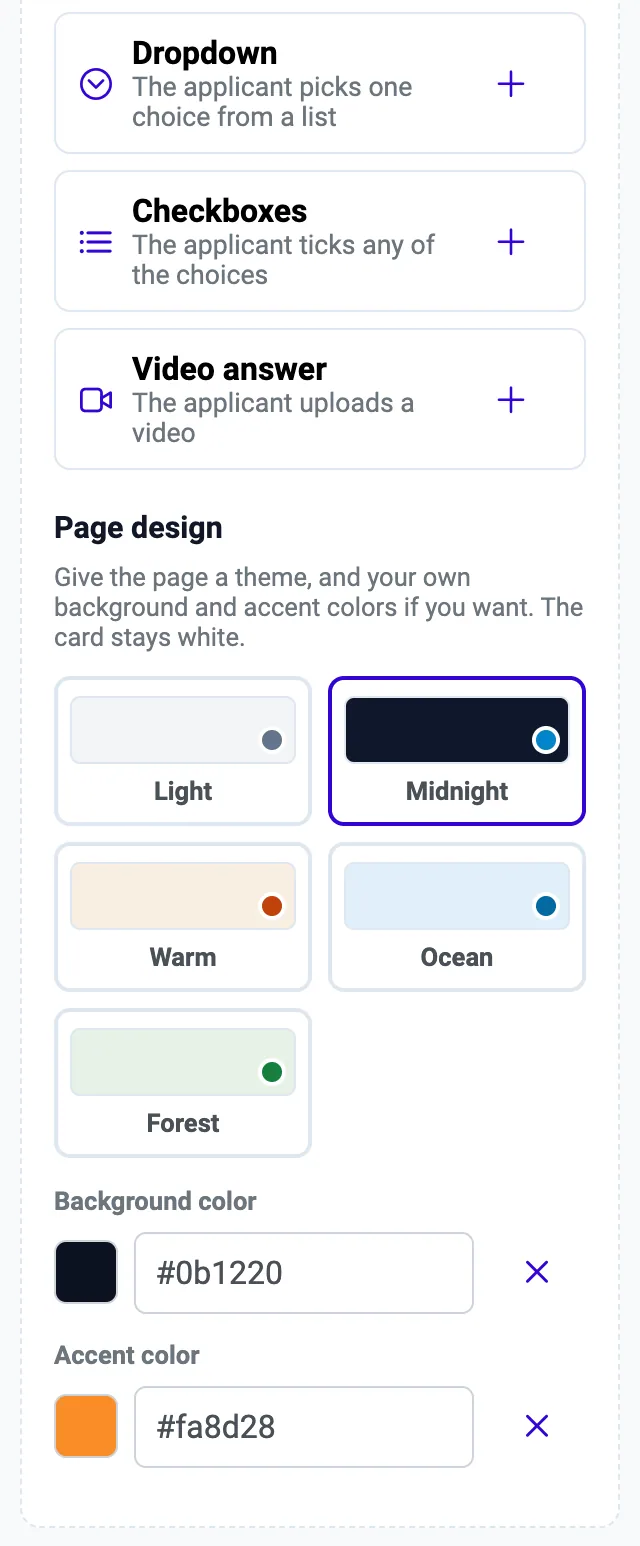
Choose a theme, then set a background color and an accent color if you want to match your brand. The card itself always stays white.
- Five themes: Light (the standard look), Midnight (a dark page behind the white card), Warm (soft cream with a terracotta accent), Ocean (pale blue with a deep-blue accent), and Forest (soft green with a green accent).
- Background color paints the page behind the card. Accent color paints buttons, highlights, and links.
- Type a hex code such as #fa8d28 or use the color picker. The x button goes back to the theme's own color.
- The logo and company name shown on the page come from Settings › My Office Design and My Company.
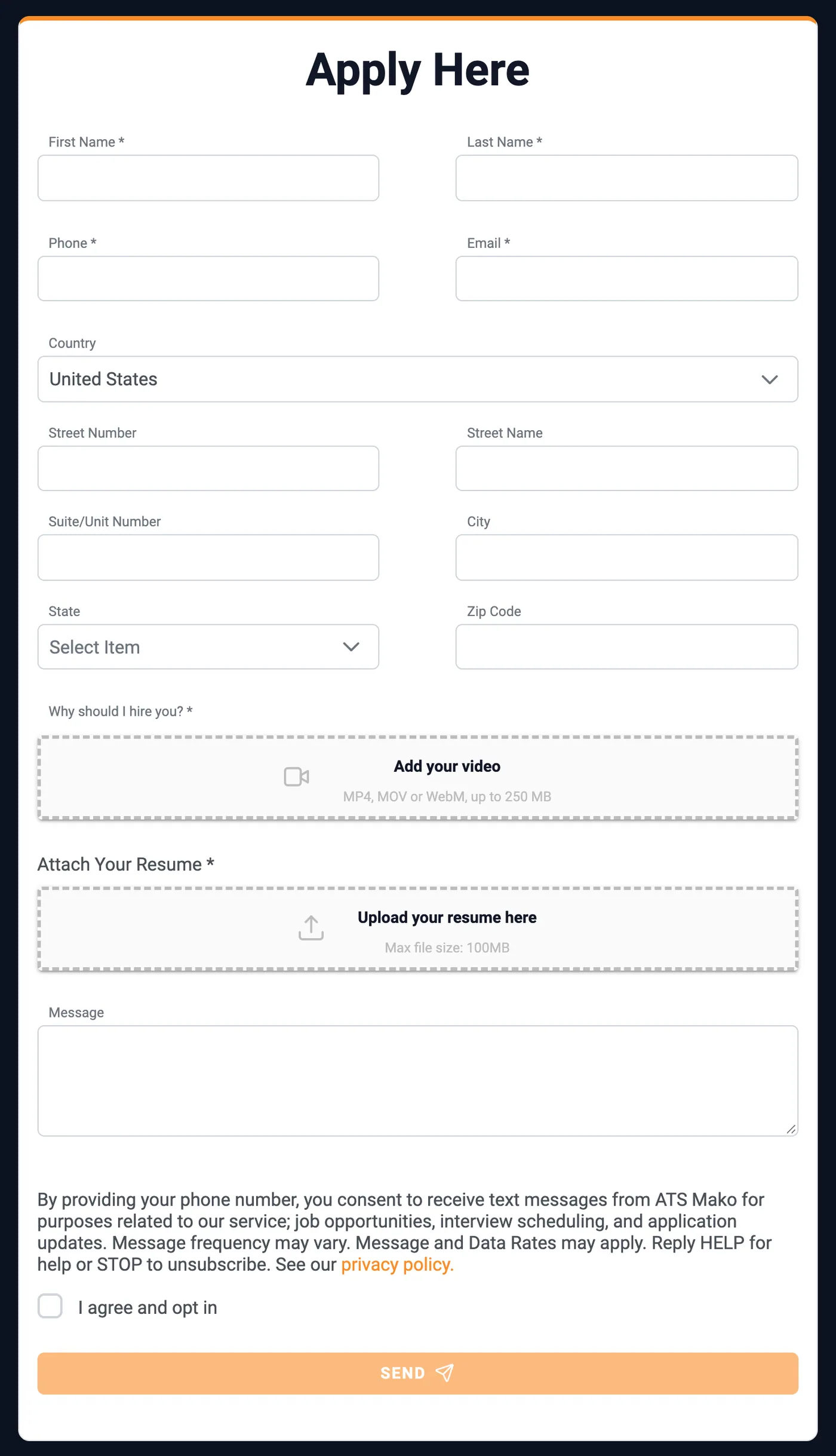
A form that looks like your company.
On the left, applicants see your logo (or company name), “Get in Touch”, and your office address, phone, and email. On the right is the application card.
- Every field appears in the order you set. Half-width fields sit side by side on wide screens and stack on phones. Required items carry an asterisk.
- Video questions show a dashed “Add your video” box: MP4, MOV, or WebM, up to 250 MB. The upload starts straight away, with a progress message.
- Resume takes drag-and-drop or a click to attach. Text Message Consent is a short paragraph and a required checkbox, “I agree and opt in”.
- Send is enabled once the form is valid. A confirmation thanks the applicant for applying and says a recruiter follows up.
Open the applicant. The answers are already there.
When someone applies, ATS Mako checks every answer against your own questions, looks for an existing person with the same email or phone, and creates the applicant with the resume attached.
- Open the new applicant (source ATS Mako Apply Page) and read the “Application questions” note on the Notes tab.
- Play the video answers from the Video Interviews tab. The eye icon (View answers) opens one panel per video question with a built-in player.
- Continue as usual: set a sub status, send a message, schedule an interview.
- If your office has “By Sub Status” automations, such as an automatic email or text when an applicant reaches a sub status, they run for the new applicant as usual.
Six question types.
A card can hold up to 20 questions. For every question you type the question text, edit the choices for dropdowns and checkboxes, and tick “Applicants must answer this question” if it is mandatory.
| Type | The applicant | Limits | Good for |
|---|---|---|---|
| Yes / No question | Chooses Yes or No. | Question text up to 200 characters. | “Are you legally authorized to work in the US?” |
| Short answer | Types one line. | Up to 255 characters. | Job title, desired pay, or a number such as years of experience. |
| Long answer | Types a paragraph. | Up to 3,000 characters. | “Explain your background” |
| Dropdown | Picks one choice from a list. | 2 to 10 choices, each up to 100 characters. | “When can you start?” |
| Checkboxes | Ticks any of the choices. | 2 to 10 choices, each up to 100 characters. | “Which shifts can you work?” |
| Video answer | Uploads a video. | One video per video question; MP4, MOV, or WebM; up to 250 MB. | “Why should we hire you?” |
What stays on the card, and what you can take off.
The Fields box lists built-in fields that are not on the card at the moment. Drag a field back to the palette to take it off the card.
| Field | Can it be removed? | Notes |
|---|---|---|
| First Name, Last Name, Phone, Email | No (required), but they can be moved. | Phone is validated as a 10-digit mobile number. |
| Resume Upload | No (required). | A PDF or Word file (.pdf, .doc, .docx). |
| Text Message Consent | No (required). | The opt-in line applicants must agree to before texts are sent. |
| Message | Yes. | A free-text note from the applicant. |
| Address | Yes. | Country, street number and name, suite, city, state, and ZIP. |
Where each answer lands.
Every application creates an applicant with status Applicant and source ATS Mako Apply Page.
| Where | What you find |
|---|---|
| Notes tab | An automatic note headed “Application questions” with each Q: and A: in card order. Checkbox answers are joined with semicolons, and yes/no appears as Yes or No. The message the applicant wrote has its own note. |
| Video Interviews tab | An entry named “Apply Here video answers” with status Completed. The eye icon (View answers) opens one panel per video question with a built-in player. |
| Files | Each video is also stored as a file named “Video answer” followed by the question. |
| Resume tab | The resume the applicant uploaded. |
Everything in Apply Page Designer.
Five themes and your own colors
Light, Midnight, Warm, Ocean, or Forest, plus a Background color and an Accent color. Type a hex code or use the color picker. The card itself always stays white.
Drag-and-drop fields
A palette on the left, a live preview of the card on the right. Drag items on and around, or use the + and arrow buttons instead of dragging.
Half or full width
The arrows icon switches a tile between half a row and a full row, so two short fields can sit side by side.
Up to 20 custom questions
Six question types: Yes / No, Short answer, Long answer, Dropdown, Checkboxes, and Video answer. Mark each one required or optional.
Video answers
Applicants upload a video file (MP4, MOV, or WebM, up to 250 MB). The upload starts straight away while they keep filling in the form.
Answers on the applicant profile
A note on the Notes tab lists each question and answer, video answers sit in the Video Interviews tab, and the resume is on the Resume tab.
A form that stays complete and consistent.
These rules are part of how the designer and the Apply Here page work.
Required items stay required
First Name, Last Name, Phone, Email, Resume Upload, and Text Message Consent cannot be removed from the card. Phone is validated as a 10-digit mobile number.
Unfinished questions block saving
A question that is not finished is highlighted in red and blocks saving until you fix it.
Opt-in before texts
Text Message Consent is a short paragraph and a required checkbox, “I agree and opt in”. It is the opt-in line applicants must agree to before texts are sent.
Answers are checked
ATS Mako checks every answer against your own questions before it creates the applicant.
No duplicate records
A returning applicant is matched to the existing record by email or phone.
Blocked applicants
Blocked applicants see the normal thank-you page, but no record is created.
Rules and limits at a glance.
The numbers to know when you build your card.
Need a number? Ask for one in the question.
Use a Short answer and say what you expect, for example “How many years of sales experience do you have? (number)”. Answers are saved exactly as typed.
- Questions per card
- 20.
- Question text
- 1 to 200 characters.
- Dropdown and checkbox choices
- 2 to 10 choices, each 1 to 100 characters.
- Short answer and long answer
- 255 and 3,000 characters.
- Video answer
- One video per video question. MP4, MOV, or WebM, up to 250 MB.
- Resume
- PDF, DOC, or DOCX.
- Message from applicant
- Up to 5,000 characters.
- Colors
- A # followed by six hex digits, such as #fa8d28.
- Always full width
- Resume, Address, Consent, Long answer, Checkboxes, and Video answer.
- Number questions
- There is no number type. Use a Short answer and say what you expect.
- Logo and company name
- They come from Settings › My Office Design and My Company.
- Where it is saved
- One layout per office. Saving replaces the previous layout immediately.
From busywork to a hiring engine.
The old way
- Ask every screening question again by phone or text after the application arrives.
- Send candidates to a form that does not look like your company.
- Copy answers from emails into the applicant's notes by hand.
With ATS Mako
- Ask the questions on the form itself, with required and optional marked.
- Pick a theme and colors so the page matches your brand.
- Find the answers in an automatic note on the profile, with video answers one click away.
Related features
Apply Page Designer FAQ
How many questions can I add, and what types?
Up to 20 questions per card, in six types: Yes / No, Short answer (up to 255 characters), Long answer (up to 3,000 characters), Dropdown (2 to 10 choices), Checkboxes (2 to 10 choices), and Video answer. Question text can be up to 200 characters, and each choice up to 100 characters.
Can I ask for a number?
There is no number type. Use a Short answer and say in the question what you expect, for example “How many years of sales experience do you have? (number)”. Answers are saved exactly as typed.
Can applicants record a video in the page?
Applicants upload a video file rather than recording in the page. A video question accepts one video of type MP4, MOV, or WebM, up to 250 MB. The upload starts straight away while the applicant keeps filling in the form, with a progress message.
Which built-in fields can I remove?
Message and Address can be removed. First Name, Last Name, Phone, and Email are required and cannot be removed, but they can be moved. Resume Upload and Text Message Consent are required and cannot be removed. A new office starts with all of the built-in fields except Address.
Where do the answers go?
ATS Mako checks every answer against your own questions, looks for an existing person with the same email or phone, then creates the applicant (status Applicant, source ATS Mako Apply Page) with the resume attached. The Notes tab gets an “Application questions” note, the Video Interviews tab gets an “Apply Here video answers” entry, and each video is also stored as a file.
When do my changes go live?
As soon as you press Save Changes. There is no separate draft or publish step. Discard changes drops unsaved edits, and Reset to default fields restores the standard card. There is one layout per office, and saving replaces the previous layout immediately.
Can I have a different Apply Here page for each job posting?
No. There is one Apply Here page per office, at your office's own Apply Here address. The link and a copy icon are in the designer.
Build a faster, smarter hiring engine.
Start your 30-day free trial — no setup fees, no contracts. Or see ATS Mako in action.
30-day free trial · No setup fees · No long-term contracts