
Voice Dialing: Browser-Based Calling for Recruiters
Phone applicants straight from ATS Mako: no extra app, no extra tab. The dialer works through a call audience one applicant at a time while you log the result and move the applicant on, on the same screen.
- per started minute of an answered call
- 5¢
- default dispositions, plus your own
- 7
- pause before the same applicant or number is called again
- 10 min
- credit top-ups, in $10 steps
- $10 to $100
Phone a whole audience from your browser, and log every call on one screen.
Voice Dialing lets you phone applicants straight from ATS Mako, with no other app and no other browser tab. You talk through your computer's microphone and speakers (or a headset), and the applicant's phone rings with one of your office's numbers. The dialer works through a call audience, one applicant after another, with the applicant's whole profile in front of you. After each call you log the result and move the applicant to the next stage on the same screen.
At a glance
- What it does
- Phones applicants from your browser, one after another through a call audience, and lets you log the result and update the applicant on the same screen.
- Where to find it
- HR (people icon) › Applicants › Voice Dialing, with five tabs: Audiences, Dispositions, Numbers, History, and Do Not Call. Audiences are built in Admin (wrench icon) › Communication › Audiences › Call Audiences.
- Who can use it
- Users with the Voice Dialing permission, which is off by default. Add the Audiences permission too, so the audience cards appear.
- What it costs
- 5 cents per started minute of an answered call. Calls nobody answers are free. Credits are bought in $10 steps ($10 to $100) with the card on file.
- Good to know
- You need a supported phone provider, a calling number, credits, a call audience, and a browser allowed to use your microphone. Calling hours and attempt limits are yours to apply.
Why recruiters care
- Stay in one window. Talk, read the resume, write notes, and change the stage while you speak.
- After you log a call, the next applicant loads and is called straight away (unless you paused dialing). Nothing to look up, nothing to dial by hand.
- Log the result with one click or one key: keys 1 to 9, then 0, pick the first ten dispositions.
- Take a breath whenever you need one. The dialer waits for you after every call, with no countdown, and “Pause Dialing” works at any time.
Why leaders care
- Pay only for answered minutes: 5 cents per started minute, and calls nobody answers are free.
- Call audiences are saved filters shared by the whole office, checked against live data each time the dialer picks the next applicant.
- Review every call in History: agent, outcome, duration, cost, and a recording where your phone provider records calls. Administrators see all agents plus usage by agent.
- One Do Not Call register for the office, shared with Native AI, so a number blocked in one place is blocked in both.
Pick an audience, call, log, move on.
One screen from the first ring to the next applicant.
- 1
Build a call audience
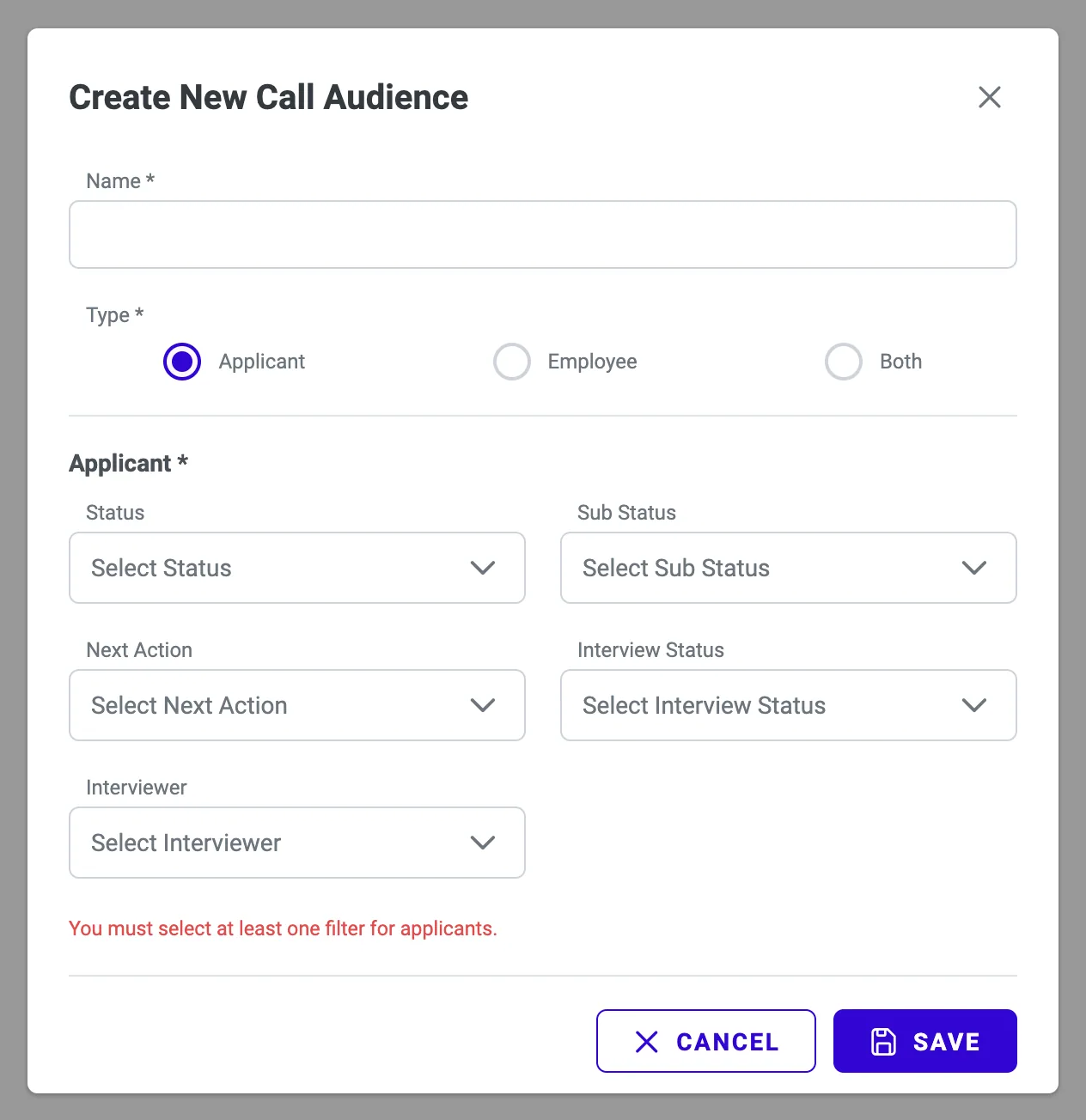
An administrator saves a set of applicant filters, for example everyone in the sub status Loop 1. It takes a name, a type, and at least one filter.
- 2
Press “Start Dialing”
Every audience has a card on the Voice Dialing page. The dialer opens, connects your softphone, and asks your browser for the microphone. Choose Allow.
- 3
The first applicant is called
You hear the ring in your headset. If nobody answers (about 30 seconds of ringing) or the line is busy, the call ends by itself and you go straight to wrap-up.
- 4
Talk and work the profile
The applicant's profile sits in the middle of the screen. Read the resume, write notes, and change the stage while you speak.
- 5
Log the result
Pick a disposition by clicking it or pressing its number key, and, if the stage changes, a Next Action (Mako). Save any notes first.
- 6
Press “Commit & Next”
The result is saved and the next applicant loads and is called at once, unless you paused dialing. Repeat until the queue is empty, then press “Exit Dialer”.
Call a saved audience, not a stale list.
A call audience is a saved set of filters, not a saved list of people. Each time the dialer needs the next applicant, ATS Mako checks the filters against your live data, so an applicant who starts to match joins the queue at once and one whose status changes can drop out. Audiences belong to the office, so everyone works from the same definitions.
- Build one in Admin › Communication › Audiences › Call Audiences: name it, choose Applicant, Employee, or Both, and pick options in at least one filter.
- Several options in one filter mean any of them (Loop 1 or Loop 2). Different filters must all match (Status Applicant and Sub Status Loop 1).
- The dialer leaves out anyone called in the last 10 minutes, anyone on a call, anyone whose number is on the Do Not Call register, and anyone without a usable main phone (a 10-digit US or Canada number).
- Drag rows to set the order of the cards, then press “Change Order” to save it. A new audience goes to the top.
Start from a card. Stay on one screen.
Each audience has a card on the Voice Dialing page with its size and a “Start Dialing” button. Press it and the dialer opens, connects your softphone, and asks for the microphone. From then on the applicant's whole profile, your queue, and the result buttons share one screen.
- Under the audience name you see the live size, plus gray lines when someone from that audience is on a call or was called recently, with the time they can be called again.
- “Pause Dialing” works at any time, even mid-call. The next applicant still loads and is held for you, but is not called until you press the Call button.
- Mute and Hang Up sit on the top bar. Keys 0 to 9, star, and hash send keypad tones into the call, for phone menus.
- Two agents can work the same audience. Each has a session of their own, and the applicant one agent is holding is not offered to the other.
Log the call, then move the applicant. Two clicks, kept separate.
After a call the dialer waits in wrap-up. You pick a disposition, optionally pick a Next Action (Mako), and press “Commit & Next”. A disposition is a label stored with the call. The stage change is done with the separate Next Action (Mako) buttons, which change the applicant's Sub Status.
- Keys 1 to 9, then 0, pick the first ten dispositions in wrap-up, so a busy day needs very few clicks.
- Only the built-in Do Not Call disposition adds the number to the register. Before you commit it, the screen warns that the number will never be dialed again.
- Next Action (Mako) is saved at once and behaves like any sub-status change: the automatic emails or texts your office linked to that sub status are sent right away, once per change.
- Notes are separate. “Commit & Next” does not save them, so save a note before you press it.
Prepaid minutes, your own numbers, a record of every call.
Voice Dialing is prepaid, and the balance belongs to the office. Press “Buy Credits” on the Voice Dialing page, pick $10 to $100 in $10 steps, and the card on file is charged. Calls cost 5 cents per started minute, counted from the moment the applicant answers.
- Unanswered, busy, failed, and cancelled calls cost nothing. 1 to 60 seconds of talk costs 5 cents and 61 seconds costs 10 cents.
- Every number is a caller ID, and one number carries one call at a time. Your office's text-message number is the primary. Buy extra numbers (a one-time charge, priced on the Numbers tab before you confirm) to run more calls at once.
- History shows each call with agent, applicant, outcome, “Logged as”, the number it went out from, duration, and cost, over 7, 30 (default), or 90 days. Agents see their own calls, administrators see everyone's, plus usage by agent.
- Where your phone provider records calls, press Play in History or in the applicant's Calls tab. Check your own recording rules first.
One register for the whole office.
The Do Not Call register works on the phone number, not the person, so any record with the same first phone is left out too. It is shared with Native AI: a number added by either feature blocks both, and the Feature column shows which one added it. Listed numbers are left out of every queue.
- Numbers join automatically when an agent commits the Do Not Call disposition (How: “Logged on a call”), or by hand with “Add a number” (ten digits, US and Canada, with an optional note).
- If a number is added after an applicant was handed to an agent, the call is still refused at dialing.
- Anyone with Voice Dialing can add a number. Only administrators can use “Take off”, and the number can be dialed again at once, so use it only when the person asked to be called again.
- The register does not read opt-outs recorded elsewhere (a text-message STOP, an email opt-out), a second phone, or a phone number changed later.
Seven default dispositions, plus your own.
The defaults are the same for every office and locked: they cannot be renamed, switched off, or deleted. Add your own with “Add Disposition” (a label up to 255 characters, different from every other label).
| Key | Disposition | Color in the dialer | Effect |
|---|---|---|---|
| 1 | Connected | Green | Label stored with the call |
| 2 | Voicemail | Blue | Label stored with the call |
| 3 | No Answer | Gray | Label stored with the call |
| 4 | Busy/Failed | Blue | Label stored with the call |
| 5 | Wrong Number | Amber | Label stored with the call. Correct the phone in the profile if you know the right one. |
| 6 | Not Interested | Amber | Label stored with the call |
| 7 | Do Not Call | Red | Label stored with the call, and the number is added to the Do Not Call register |
| 8, 9, 0 | Your own results | Gray | Label stored with the call. Keys go to your first three results; later ones have no key. |
Seven phases, always on screen.
A dot and one word at the top of the dialer tell you where you are and what to do next.
| Phase | What it means | What you do |
|---|---|---|
| STARTING | Getting your calling token and connecting your softphone. | Choose Allow when the browser asks for the microphone. |
| IDLE | An applicant is loaded and no call is under way. Usually a split second, and also while paused. | Press the Call button (it shows the number). |
| DIALING | The call is placed and the applicant's phone is ringing. | Wait, or Hang Up. |
| CONNECTED | The applicant answered (a voicemail greeting counts as answered). The timer runs. | Talk, Mute, send keypad tones, or Hang Up. |
| WRAP-UP | The call is over. There is no time limit. | Pick a disposition, then press “Commit & Next”. |
| QUEUE EMPTY | Nobody is left to hand out right now. | End the session and start again later. |
| ERROR | The dialer stopped, and a red message says why. | Press Try Again or go back to Voice Dialing. |
Who can do what.
Voice Dialing is a permission, off by default. This is what it allows, and what stays with administrators.
| Action | User with Voice Dialing | Administrator |
|---|---|---|
| Start dialing, call, log results | Yes (own sessions and calls only) | Yes (own only) |
| Create, edit, delete, and reorder call audiences | Needs the Audiences permission | Same |
| History and totals | Own calls only | All agents, plus usage by agent |
| Credit activity and playing any recording | Whole office | Whole office |
| Buy credits, buy or release a number | Yes | Yes |
| See the card and invoices | No | Yes |
| Add a number to Do Not Call | Yes | Yes |
| Take a number off Do Not Call | No | Yes |
| Add, rename, or switch off your own dispositions | Anyone who can open the page | Same |
Everything in Voice Dialing.
Calls from the browser
Talk through your computer's microphone and speakers or a headset. The applicant's phone rings with one of your office's numbers as caller ID.
Call audiences from live filters
An audience is a saved set of filters (Status, Sub Status, Next Action, Interview Status, Interviewer), not a saved list. An applicant who starts to match joins the queue at once.
Dispositions and Next Action (Mako)
Seven locked default results plus your own. A separate Next Action (Mako) list moves the applicant to a new sub status without leaving the dialer.
Prepaid, with numbers you can add
Credits pay for answered minutes at 5 cents per started minute. Extra numbers are a one-time purchase, priced before you confirm, and let your office run more calls at once.
History and recordings
Every call with agent, applicant, outcome, “Logged as”, duration, and cost, over 7, 30, or 90 days. Press Play to hear a call where your phone provider records.
A shared Do Not Call register
Committing the Do Not Call disposition adds the number to an office-wide register. Listed numbers are left out of every queue, for Voice Dialing and Native AI alike.
Rules the dialer enforces for you.
The dialer protects your balance, your applicants, and your pace. Contact rules such as calling hours stay with your team.
It moves on when you say so
After a call the dialer waits in wrap-up until you log a result and press “Commit & Next”. No Skip button, no countdown between calls.
Funded in advance
Every call is funded before it starts and has a time limit: at most 4 hours, less on a low balance. The balance never goes below zero.
Ten minutes between attempts
After any call, whatever the outcome, nobody in the office can call the same applicant or the same number again for 10 minutes.
Do Not Call is checked at dialing
Listed numbers are left out of every queue, and a number added after hand-off is still refused when the call is placed.
One call per number
A number carries one live call at a time, and a number another call is using (including a Native AI call) is left out of the queue.
Off until you switch it on
The Voice Dialing permission is off for every user by default, and the menu item is hidden without it. Anyone with it can buy credits and numbers, so give it deliberately.
Rules and limits at a glance.
What Voice Dialing does, what it charges, and what it leaves to your team.
Set your own contact rules.
ATS Mako does not check the applicant's time zone, calling hours, or number of attempts, and it does not tell the person you call that a call is recorded. Agree your contact rules and your recording notice with your team, and check what applies in your state or country.
- Price
- 5 cents (US$0.05) per started minute of an answered call, counted from the answer. Unanswered, busy, failed, and cancelled calls are free.
- Credit purchases
- $10 to $100 in $10 steps ($20 is preselected), charged to the card on file. No expiry, no automatic recharge, no low-balance alert.
- Longest call
- 4 hours, or less if the balance funds fewer minutes. The call ends like a hang-up, with no warning. About 30 seconds of ringing counts as no answer.
- Pause after any call
- 10 minutes before anyone in the office can call the same applicant or the same number again, for every outcome.
- Calling hours and attempts
- No time zone or calling-hours check, and no maximum number of attempts. Applying your own contact rules is up to your team. Native AI is the feature that enforces calling windows.
- Who can be dialed
- The first phone field only: a 10-digit US or Canada number. The order the dialer works in is internal (not oldest first, not best first).
- Calling back later
- There is no call-back result or timer. Use a Follow-Up Reminder (an email to you at the time you set) or book an Event Date.
- Numbers
- One live call per number. Extra numbers are a one-time charge shown before you confirm, with no area-code choice and no limit on how many. Releasing a number is immediate, cannot be undone, and the price is not refunded.
- History
- 7, 30 (default), or 90 days, 10 calls per page. No export, search, or filter.
- Recording
- Depends on your phone provider. Where calls are recorded, every answered call is recorded on both sides. ATS Mako gives the person you call no notice and sets no retention period.
- Leaving the dialer
- “Exit Dialer”, any click on the ATS Mako menu, and the browser's Back button end your session and hang up a live call without asking. Log your last result first.
From busywork to a hiring engine.
The old way
- Dial from a separate phone or app, then switch back to ATS Mako to find the applicant.
- Type the call result and the next stage into the record by hand after every call.
- Keep Do Not Call numbers in a spreadsheet and hope everyone checks it.
With ATS Mako
- Press “Start Dialing”, allow the microphone, and the first applicant is called.
- Click a disposition and a Next Action (Mako), then press “Commit & Next”.
- One shared register keeps listed numbers out of every queue.
Related features
Voice Dialing FAQ
Do I need a phone to make the calls?
No. Calls are placed from your browser through your computer's microphone and speakers, or a headset. The first time, the browser asks to use the microphone: choose Allow. The browser's default microphone and speaker are used.
What does it cost?
5 cents (US$0.05) per started minute of an answered call, counted from the answer. 1 to 60 seconds costs 5 cents and 61 seconds costs 10 cents. Calls nobody answers, busy lines, failures, and cancelled calls cost nothing. Credits are prepaid, bought in $10 steps from $10 to $100 with the card on file. There is no automatic recharge or low-balance alert, so top up before the balance runs low.
Does it call one applicant after another by itself?
It calls the next applicant when you say so. After each call the dialer waits in wrap-up until you log a disposition and press “Commit & Next”. There is no Skip button and no countdown between calls. Then the next applicant loads and is called at once, unless you paused dialing.
Does a disposition change the applicant's status?
No. A disposition is a label stored with the call. It appears as “Logged as” in History and in the applicant's Calls tab. To move the applicant, use the separate Next Action (Mako) buttons, which change the Sub Status. The one exception is the built-in Do Not Call disposition, which also adds the number to your register.
Does it respect calling hours or limit how many times I call?
No. The dialer does not check the applicant's time zone or calling hours, and it sets no maximum number of attempts. Applying your own contact rules is up to your team. The one built-in pause: after any call, nobody in the office can call the same applicant or the same number again for 10 minutes. If you want calling windows enforced for you, that is what Native AI does.
Are calls recorded?
That depends on your office's phone provider. Where your provider records, every answered call is recorded on both sides, and the recording appears in History once it is ready (up to 15 minutes). Where it does not, History shows no recording. ATS Mako does not tell the person you call that a call is recorded, and it sets no retention period. Rules about recording calls differ by state and country: check the rules that apply to you, and tell people yourself if they require it.
Who can use it, and what do we need?
Voice Dialing is a user permission that is off by default. Switch it on in Admin › Configuration › Users, under Communication, and add Audiences so the audience cards appear. Anyone with the permission can buy credits and numbers, so give it deliberately. Your office also needs a supported phone provider (the dialer uses the same provider as your text messages), a calling number, credits, and a call audience.
Build a faster, smarter hiring engine.
Start your 30-day free trial — no setup fees, no contracts. Or see ATS Mako in action.
30-day free trial · No setup fees · No long-term contracts