
One-Way Video Interviews: Send, Record, and Review
Send a candidate a link with your own recorded questions. They answer on camera whenever it suits them, ATS Mako reminds them to finish, and every recording posts back to their profile for you to watch at your leisure.
- the candidate records when it suits them
- Any time
- to invite, record, and finish
- One link
- reminders for candidates who have not finished
- Automatic
- every recording stored with the candidate
- On the profile
Send a link. Candidates record their answers. You watch when you're ready.
One-way video interviews let you interview a candidate without finding a time that works for both of you. You build a set of questions once, and you can record yourself introducing the interview and asking each question. From the candidate's profile you send a link with a deadline. The candidate opens it, watches your video, and records their answers on camera in the browser, on their own schedule. The recordings post straight back into ATS Mako and are stored on the candidate's profile, so you and your team can watch them whenever it suits you. Automated reminders nudge candidates who haven't finished, so nobody has to chase them by hand.
At a glance
- What it does
- Sends a candidate a link to answer your questions on camera. The recordings post back into ATS Mako and are stored on the candidate's profile.
- Where to find it
- Build interviews in Admin › Configuration › Workflows › Video Interviews. Send from the video icon on a candidate's profile. Watch on the profile's Video Interviews tab.
- What the candidate does
- Opens the link from an email, watches your video, and records answers in the browser before the deadline.
- What keeps it moving
- A deadline you choose, automatic reminders for candidates who have not finished, and a completion email to the sender.
- Good to know
- Only active interviews can be sent. Each sent interview keeps its own copy, so later edits never change interviews already out.
Why recruiters care
- Skip the scheduling back-and-forth. Send the link and the candidate records when it suits them.
- Your own video asks the questions, so every candidate gets a personal welcome and the same interview.
- Reminders go out automatically, so you are not chasing candidates who have not finished.
- Every recording is stored on the candidate's profile, next to their resume, notes, and status.
- Watch the answers at your leisure: between calls, after hours, in any order.
Why leaders and hiring managers care
- Every candidate gets the same questions in the same order, which makes answers easier to compare.
- Sent interviews stay as sent. Editing a question set later never changes interviews already out.
- Recordings live in the system, not in an inbox or a shared drive, so the whole team sees the same thing.
- You see where every interview stands: sent, started, and completed, with the times, on the profile and on the calendar.
From question set to recordings you can watch.
Build it once. After that, each candidate is a few clicks for you and one link for them.
- 1
Build it once
In Admin › Configuration › Workflows › Video Interviews, create an interview in four steps: Details, Questions, Closing, and Review. Link it to a job posting.
- 2
Record yourself
Add a welcome and a thank-you, as text or video, and optionally a video of you asking each question. For every question, set the attempts and the longest answer.
- 3
Send the link
Click the video icon on the candidate's profile, choose the interview, and set an expiration date and time.
- 4
The candidate records
The candidate gets an email with a green START VIDEO INTERVIEW button and the deadline. They watch your video and answer on camera in the browser.
- 5
Reminders do the chasing
ATS Mako reminds candidates who have not finished. When the last answer is in, the sender gets a completion email.
- 6
Watch at your leisure
Open the candidate's Video Interviews tab and play every recording. Then set the candidate's status and next step as you always do.
One click from the candidate's profile.
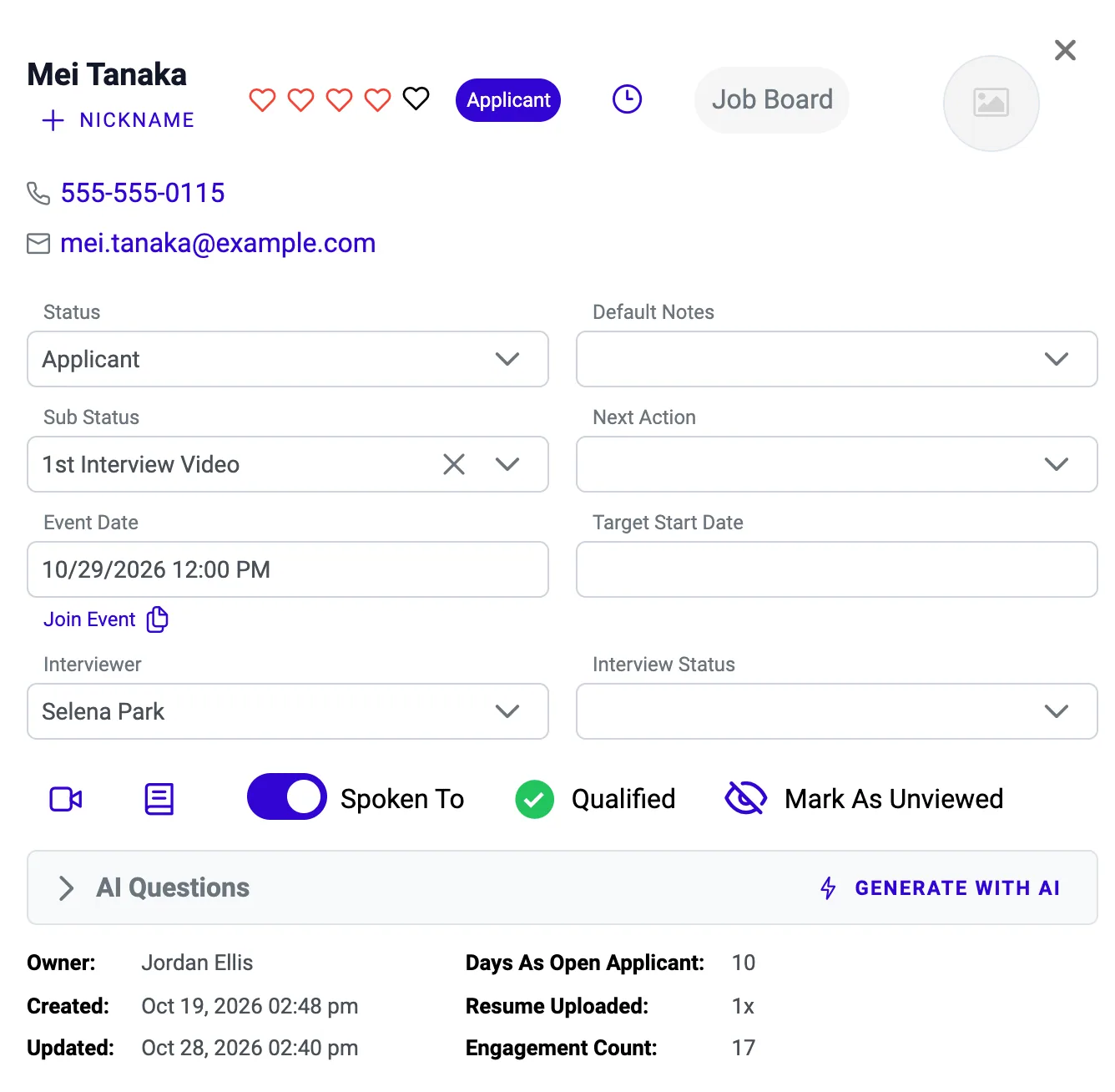
You never leave the candidate's record to send a video interview. The video icon sits beside the other action buttons in the applicant panel. Click it, choose which interview to send, set an expiration date and time, and the candidate receives their link.
- The candidate gets an email with a green START VIDEO INTERVIEW button and the deadline.
- Choose any active interview. Each one you send keeps its own copy of the questions.
- No calendar invite and no meeting to attend: the candidate answers on their own schedule.
- Every interview you send is tracked on the candidate's profile.
Reminders go out on their own.
The reason one-way interviews stall is that nobody remembers to finish them. ATS Mako reminds candidates who have not completed theirs automatically, so the follow-up is not another task on your list. Meanwhile the deadline stays visible to you.
- Automated reminders prompt candidates who have not finished their video interview.
- Pending video interviews show on the Interview Calendar as yellow blocks with a camera icon, each one ending at its expiry time.
- When the last answer is in, the sender gets a completion email.
- A Video Interviews counter at the top of the calendar shows how many are out.
Every recording, stored on the profile.
Candidates' answers post straight back into ATS Mako, so there are no files to download, no inbox to dig through, and no shared folder to keep tidy. Open the candidate's Video Interviews tab and everything is there.
- Play every recording from the Video Interviews tab.
- See when each interview was sent, started, and completed, and when it expires.
- The recordings sit next to the resume, notes, and calls on the same profile, so the whole team reviews the same record.
- Watch when it suits you: between calls, after hours, in any order.
Ask once. Use it for every candidate.
A video interview is a saved set of questions, so you build it once and reuse it. You decide what the candidate sees and how much room they get to answer.
- Four steps: Details, Questions, Closing, and Review.
- A welcome and a thank-you, as text or video.
- An optional video of you asking each question, so the interview feels personal.
- For every question, how many attempts the candidate gets and how long an answer can run.
- Link it to a job posting, and switch it on or off whenever you like. Only active interviews can be sent.
Who hears what, and when.
The messages that keep a one-way video interview moving.
| Message | Who gets it | What it does |
|---|---|---|
| Invitation | The candidate | Arrives when you send the interview. A green START VIDEO INTERVIEW button opens it, and the deadline is in the email. |
| Reminder | The candidate | Goes out automatically to candidates who have not finished, so you do not have to follow up by hand. |
| Completion email | The person who sent it | Arrives when the last answer is in, so you know the recordings are ready to watch. |
One-way or live: pick per candidate.
Both live in the same candidate profile and on the same Interview Calendar.
| Compared | One-way video interview | Live video interview |
|---|---|---|
| Timing | The candidate records whenever it suits them before the deadline. | Both people online at the scheduled time. |
| How it starts | You send a saved set of questions from the candidate's profile. | The room is created when you set an Event Date. |
| What you get | Recorded answers to watch later, question by question. | A live conversation with the candidate's profile beside the video. |
| On the calendar | A yellow block ending at the expiry time, with a camera icon. | A teal block at the scheduled time. |
| Counted on the dashboard as | 1st Video Interviews Sent or 2nd Video Interviews Sent. | 1st Interviews or 2nd Interviews, by scheduled date. |
Everything in One-Way Video Interviews.
A reusable set of questions
Build a video interview once in Admin › Configuration › Workflows › Video Interviews, link it to a job posting, and send it to any candidate. Only active interviews can be sent.
Your video, not just text
Add a welcome and a thank-you, as text or as video, and optionally a video of you asking each question. The candidate sees a person, not a form.
You set the rules for every answer
For each question, choose how many attempts the candidate gets and how long an answer can run.
Sent with a deadline
Click the video icon on the candidate's profile, choose the interview, and set an expiration date and time. The candidate's email carries the deadline.
Recorded in the browser
The candidate opens the link, answers on camera right in the browser, and finishes when it suits them before the deadline.
Automatic reminders
ATS Mako reminds candidates to complete their video interview, so you do not have to follow up by hand.
Recordings stored on the profile
Every answer posts back into ATS Mako and is saved on the candidate's Video Interviews tab, with when it was sent, started, and completed.
Completion email
When the last answer is in, the person who sent the interview gets an email, so you know it is ready to watch.
On the Interview Calendar
Each pending video interview appears as a yellow block with a camera icon, ending at its expiry time, next to your live interviews.
Built so every candidate gets the same interview.
A good screen is a fair one. One-way video interviews keep the questions, the deadline, and the recordings under your control.
Sent interviews stay as sent
Editing an active interview does not change the ones already sent. Each sent interview keeps a frozen copy of its questions.
A deadline you set
Every interview is sent with an expiration date and time, so nothing sits open forever.
Attempts and length per question
You choose how many tries a candidate gets on each question and how long an answer can run.
Only active interviews go out
Switch an interview off and it can no longer be sent. Switch it back on when you need it.
Recordings stay with the record
Answers are saved on the candidate's profile inside ATS Mako, not scattered across inboxes and shared drives.
Nothing to install
The candidate answers in the browser from the link in the email.
The details at a glance.
How one-way video interviews work from build to review.
Send it today. Watch it tonight.
The candidate does not need you online, and you do not need them online. Send the link, let the reminders do the chasing, and watch the recordings when you have the time.
- Build it
- Admin › Configuration › Workflows › Video Interviews, in four steps: Details, Questions, Closing, and Review.
- Send it
- The video icon on the candidate's profile. Choose the interview and an expiration date and time.
- The candidate's email
- A green START VIDEO INTERVIEW button and the deadline.
- The candidate answers
- On camera, in the browser, before the deadline.
- Reminders
- Automatic, for candidates who have not finished.
- When it's done
- The sender gets a completion email.
- Where recordings live
- The candidate's Video Interviews tab, with sent, started, and completed times and an expiration.
- On the calendar
- A yellow block with a camera icon, ending at the expiry time, plus a Video Interviews counter at the top.
- Counted on the dashboard as
- 1st Video Interviews Sent or 2nd Video Interviews Sent.
From busywork to a hiring engine.
The old way
- Trade messages to find a time for a screening call, then wait for the no-show.
- Ask the same opening questions on call after call.
- Chase candidates by hand to see whether they ever did the exercise.
- Pass recordings around by email or a shared folder.
With ATS Mako
- Send the link with a deadline. No calendar needed.
- Record the questions once and send the same interview to every candidate.
- Automated reminders prompt candidates who have not finished.
- Recordings land on the candidate's profile, ready to play.
Related features
One-Way Video Interviews FAQ
What is a one-way video interview?
An interview where the candidate records their answers on camera instead of talking live. You send the questions, the candidate answers whenever it suits them before a deadline, and you watch the recordings later. Nobody has to be online at the same time.
Can I send my own pre-recorded video?
Yes. When you build the interview you can add a welcome and a thank-you as text or video, and optionally a video of you asking each question. The candidate watches you ask, then records their answer.
How does the candidate get the interview?
From the candidate's profile, click the video icon, choose the interview, and set an expiration date and time. The candidate receives an email with a green START VIDEO INTERVIEW button and the deadline.
Does the candidate need to install anything?
No. The candidate opens the link and records the answers in the browser.
Does ATS Mako remind candidates to finish?
Yes. Reminders go out automatically to candidates who have not completed their video interview, so you do not have to chase them yourself.
Where do the recordings go?
They post straight back into ATS Mako and are stored on the candidate's profile, in the Video Interviews tab. You can play every recording there, and the tab shows when the interview was sent, started, and completed.
How do I know when a candidate has finished?
When the last answer is in, the person who sent the interview gets a completion email. The Video Interviews tab on the profile shows the status as Completed.
Can I control how long answers are and how many tries a candidate gets?
Yes. For each question you choose how many attempts the candidate has and how long an answer can run.
What happens if I edit the interview after sending it?
Interviews already sent do not change. Each sent interview keeps its own frozen copy of the questions, so every candidate answers what they were sent.
How is this different from a live video interview?
A live video interview is a meeting: you and the candidate are in the same private room at the scheduled time. A one-way video interview is asynchronous: the candidate records on their own and you watch later. Both live in the same candidate profile and on the same Interview Calendar.
Build a faster, smarter hiring engine.
Start your 30-day free trial — no setup fees, no contracts. Or see ATS Mako in action.
30-day free trial · No setup fees · No long-term contracts